
In this article:
Learn how to link audit questions to accreditation standards in Logiqc so audit activity can support compliance requirements and evidence collection at the same time.
Use this feature to map internal audit questions to standards and build live evidence for reporting and accreditation.
Tip: For a detailed step-by-step guide, see the Academy tutorial below.
Accreditation linking helps your organisation use one activity for two purposes: completing audits and building compliance evidence.
Link to standards
Connect audit questions to standards such as NSQHS (2021), NZS 8134, NDIS, RACGP, or ISO.
Build evidence automatically
Responses, comments, and attachments are linked to the mapped standard and become part of the Evidence Report.
What this means: One audit question can support day-to-day quality checks while also providing evidence against an accreditation requirement.
Q: Can one question be linked to more than one standard?
A: Yes. If one question meets requirements across multiple frameworks, you can link it to more than one standard.
Q: What gets included in the Evidence Report?
A: Linked responses, comments, and attachments are included as evidence against the mapped standard or criterion.
Q: Why can't I see the Link to standard option?
A: Check that you are in Admin mode and that the Accreditation Registers and Evidence Reports modules are enabled for your platform.
Before you start
Check the following:
- You have Logiqc Auditor.
- You are in Admin mode.
- You have the required permissions to edit audit templates, and the Accreditation Registers and Analytics Reports modules are enabled for your platform.
Step 1: Open the audit template
Navigate to Audit templates in Admin mode:
Navigation path
Located in the top right corner of the screen. Click the ⋮ icon and select Admin mode.
Once in Admin mode, select Audit templates from the Administration panel on the left-hand side.
Open the audit template that contains the question you want to link.
Open the template, then select the question you want to map to an accreditation standard.
Step 2: Link the question to a standard
Select the question to open its settings in the right-hand panel, then choose Link to standard.
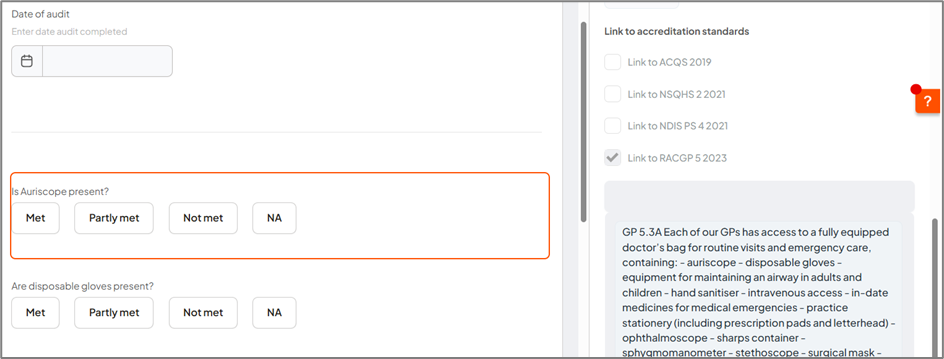
Open the question settings and select Link to standard.
Step 3: Map criteria and manage linking
Select the relevant standard, then navigate through the hierarchy to choose the matching criterion, action, or indicator.
Single standard
Use this when one question maps to one requirement in one framework.
Multi-standard linking
Repeat the process when the same question supports more than one framework.
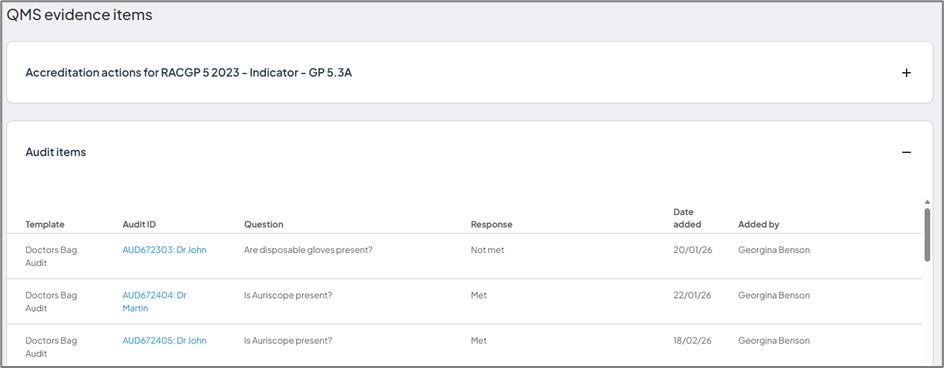
Map the question to the standard requirement it supports.
Troubleshooting
If something is not working as expected:
"Link to standard option not visible"
- Check that you are in Admin mode
- Confirm the Accreditation Registers and Evidence Reports modules are enabled
- Refresh the page and reopen the question settings
"No standards available"
- Check that standards have been configured in the Accreditation Register
- Confirm your permissions allow access to the required records
What happens next
Once audit questions are linked to accreditation standards, the system builds live compliance evidence in the background as audits are completed. Once one or more audits using this template have been submitted, you can open the Accreditation Register, select the relevant standard, and review the Evidence Report — expanding each criterion to see linked audit responses, comments, and attachments.
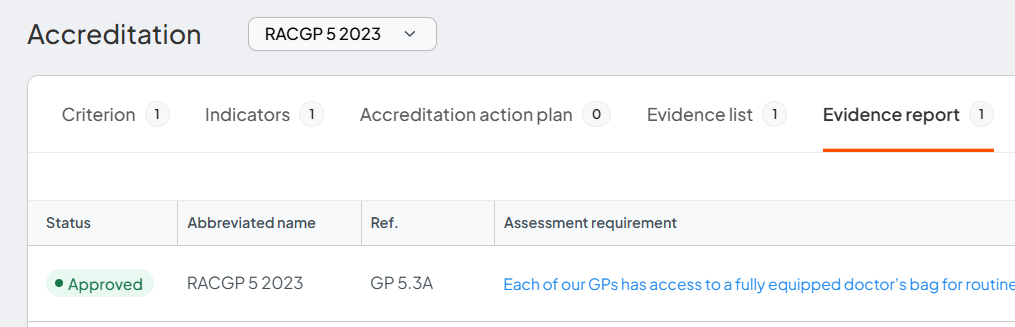
Use the Evidence Report to review live audit evidence against each standard.
Evidence is captured automatically
Linked responses, comments, and attachments are recorded against the mapped standard as audits are completed.
Coverage gaps are easier to spot
You can see which criteria are supported by audit activity and which areas need more coverage.
Reporting becomes simpler
Evidence is organised against the standard, making preparation for reviews and accreditation easier.
Your organisation stays more audit-ready
Compliance evidence is built continuously instead of being collected manually at the last minute.