
In this article:
Learn how to set audit benchmarks in Logiqc so you can define a clear pass/fail standard and identify risks sooner.
You can also apply scoring to give more weight to high-risk responses and make audit results easier to interpret.
Tip: For a detailed step-by-step guide, see the Academy tutorial below.
Benchmarks and scoring work together to make audit results more meaningful and easier to act on.
Benchmark
Sets the pass/fail standard for the audit and creates a consistent way to interpret results.
Scoring
Gives more weight to critical questions so high-risk responses have a stronger impact on the final result.
What this means: If an audit has a pass mark of 85%, you can weight a high-risk question so that a negative response prevents the audit from passing, regardless of the other answers.
Q: What does the benchmark do?
A: The benchmark is the target score an audit must achieve to be considered a pass.
Q: Can I make one question more important than another?
A: Yes. You can adjust weightings so some questions have more influence over the final score.
Q: What happens when a response is marked as critical?
A: Critical responses are highlighted prominently in the Audit Report so they are not missed, even if the overall score is high.
Before you start
Check the following:
- You have Logiqc Auditor.
- You are in Admin mode.
- You have the required permission to edit audit template settings and scored questions.
Step 1: Open the audit template
Navigate to Audit templates in Admin mode:
Located in the top right corner of the screen. Click the ⋮ icon and select Admin mode.
Once in Admin mode, select Audit templates from the Administration panel on the left-hand side.
Open the audit template you want to update, then review the benchmark setting and the questions that use scoring.
Open the audit template you want to update, then review the benchmark setting and the questions that use scoring.
Step 2: Set a benchmark
Click Edit settings Located at the top of the audit template. to open the template settings, where you can set the benchmark score the audit must achieve to pass.
For example: If the benchmark is set to 80%, the completed audit must achieve a total score of at least 80%.
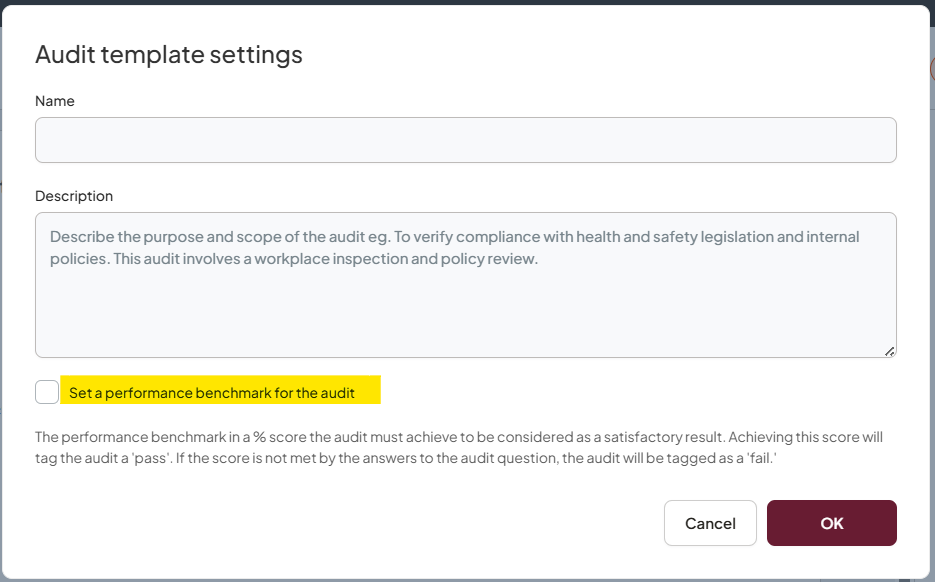
Set the benchmark percentage the audit must achieve to be considered a satisfactory result.
Step 3: Assign scores to responses
Each response option can be assigned a score. These scores are added together to calculate the total audit result.
Standard scoring
Use score values to reflect the normal importance of each response option.
Weighted scoring
Assign higher weights to high-risk questions so they have a stronger impact on the final result.
For example: Imagine a 10-question audit with a pass benchmark of 85%. If you assign a weight of 3 to a critical question, a negative response would make it impossible to reach the 85% threshold.
This means the audit would fail even if the other nine questions were answered perfectly.
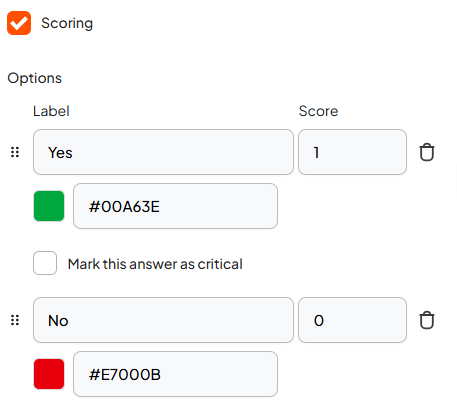
Assign a score to each response option so the audit can be measured consistently.
Step 4: Mark critical answers
For high-risk items, you can also mark specific responses as Critical.
For example, if a user selects a specific response such as No on a safety check, the system automatically flags it.
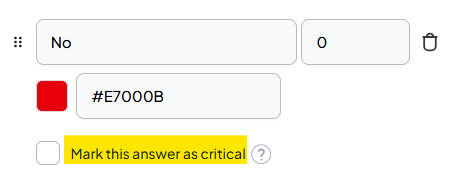
Mark responses as critical when they represent a high-risk finding that should stand out in reporting.
Troubleshooting
If scoring is not behaving as expected:
"The audit did not pass as expected"
- Check the benchmark percentage on the template settings
- Review the score values on each response option
- Confirm the answers in the completed audit add up to the expected total
What happens next
Once benchmarks and scoring are in place, completed audits can be interpreted more consistently, with clearer reporting on performance, critical findings, and trends over time.
Responses are converted into a score
Each scored answer contributes to the total result based on the values you assigned.
The score is compared with the benchmark
The completed audit is checked against the benchmark to determine whether it meets the expected standard.
Critical answers are highlighted
Critical responses remain visible in the Audit Report, even when the overall score is acceptable.
Reporting becomes more meaningful
Benchmark results, weighted answers, and critical responses all contribute to clearer reporting and analytics.
To monitor progress against your audit benchmarks, see: