In this article:
Learn how Logiqc Auditor works as a streamlined online audit management system for scheduling, conducting, and analysing once-off or recurring audits, inspections, and checks.
Use this feature to manage audits online, track outcomes and actions, and support ongoing safety, quality, and compliance activity.
Tip: For a detailed step-by-step guide, see the Academy tutorial below.
Key features
Logiqc Auditor is designed to simplify how you schedule, conduct, and analyse audits, inspections, and checks.
Whether you are performing a complex clinical audit or a simple safety walk-through, you can work fully online using a custom-built form or manage traditional audits by linking to external files for download.
Audit summary page for each audit, providing insights into audit outcomes and progress.
Task drawer for completing tasks and moving the audit to the next stage in the workflow.
Audit template builder for creating online audit templates and checklists.
Analytics and audit report for visualising trends and sharing outcomes.
Link to accreditation standards for instant compliance tracking.
Mobile ready for auditing in the field.
Auditor seats
To perform audits using the online template, the Action Officer for the audit must be assigned an Auditor seat. Your current plan includes a total of five seats. Additional seats can be ordered through the Logiqc Store.
How to assign or remove Auditor seats
You can manage these assignments using one of the following two methods:
- Via System Settings: Enter Admin mode, navigate to System settings > Audit register settings, and use the Auditor seats control.
- Via User Profiles: Go to a specific User account profile and select or deselect the Auditor seat checkbox.
Required Permissions
To manage these seats, your user account must have at least one of the following permissions:
- Edit system settings
- Create and edit users, roles, and teams
Audit summary page
Open any audit and you will see a summary of the audit, including the workflow stage it is in, progress and recommendations to date, and who it is assigned to.
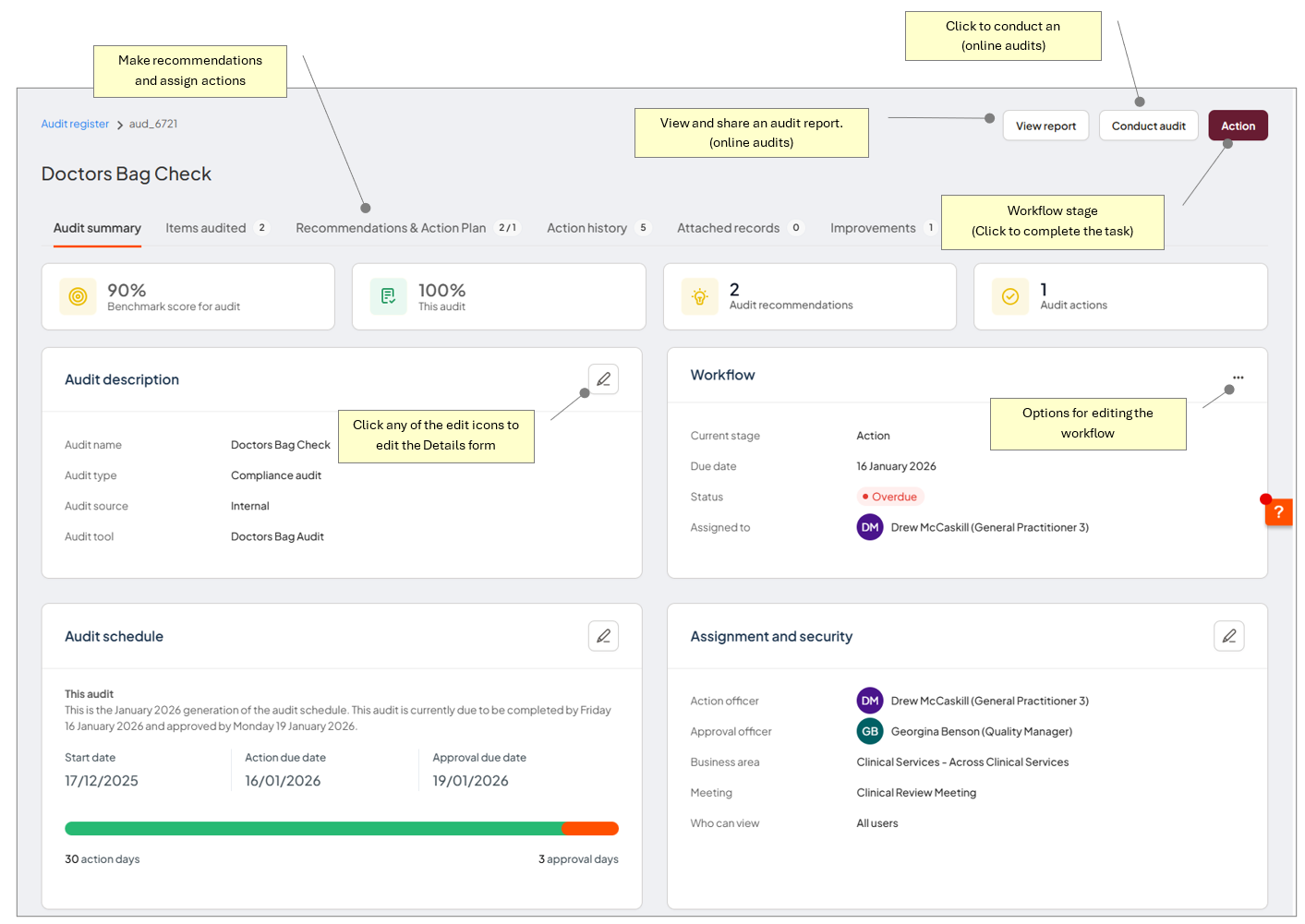
The Audit Summary page gives you a quick overview of the audit's status, progress, and ownership.
Completing tasks
When you open your task or click the link in your My tasks box, a drawer slides in from the right-hand side with all the functions you need to complete the task you have been assigned.
During the Action stage, options can include conducting the audit, making a progress note, or completing the task.
During the Review and Close stage, approval officers use the drawer to evaluate auditor recommendations, create formal actions, and assign them to the relevant team members for completion.
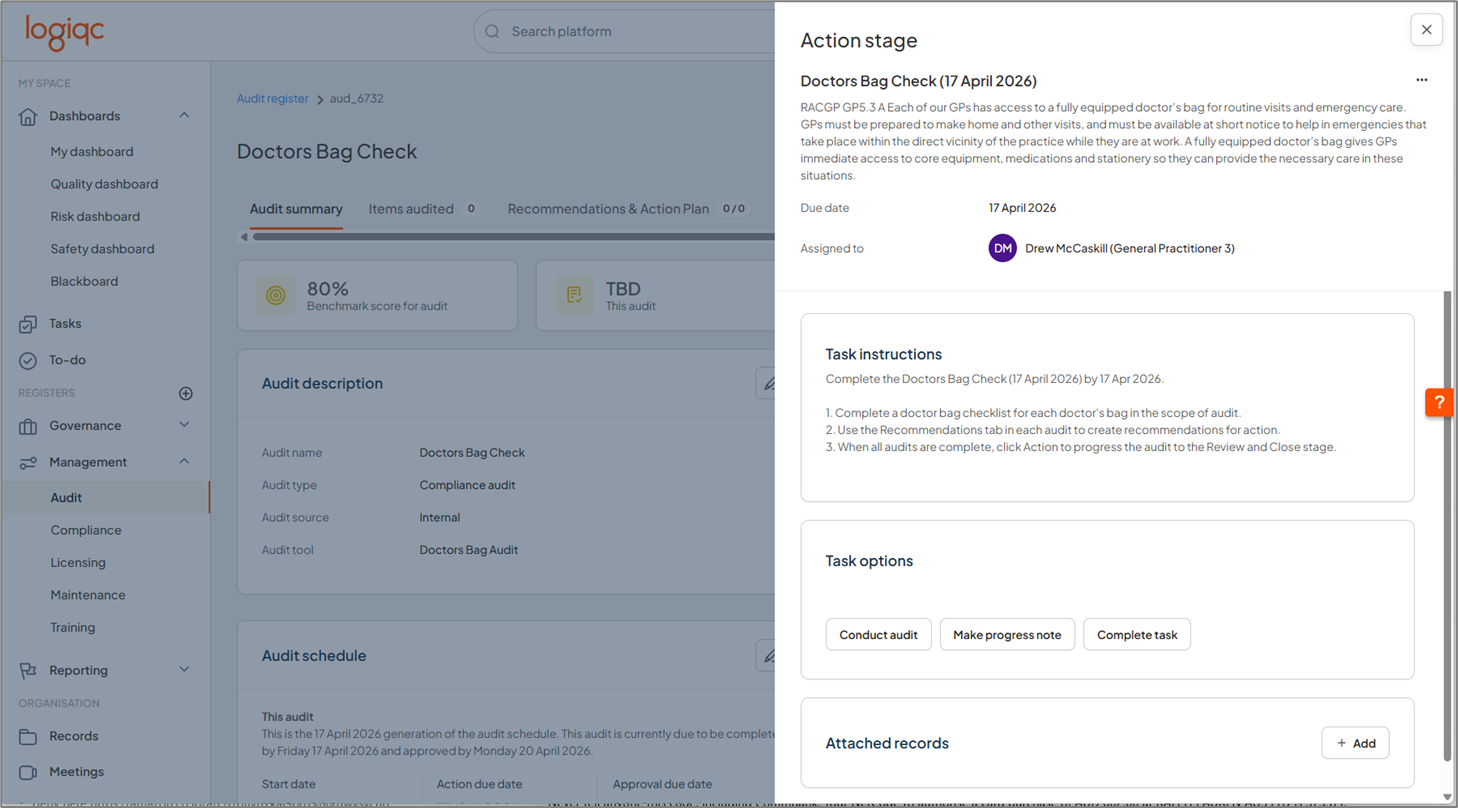
The task drawer provides the tools needed to complete the current audit task.
Read the article to find out more:
Audit template builder
Accessible via Admin Mode, the template builder provides flexibility to tailor the platform to your organisation's unique operational requirements.
Choose the path that best fits your workflow.
Start from scratch or get started quickly with a pre-built template.
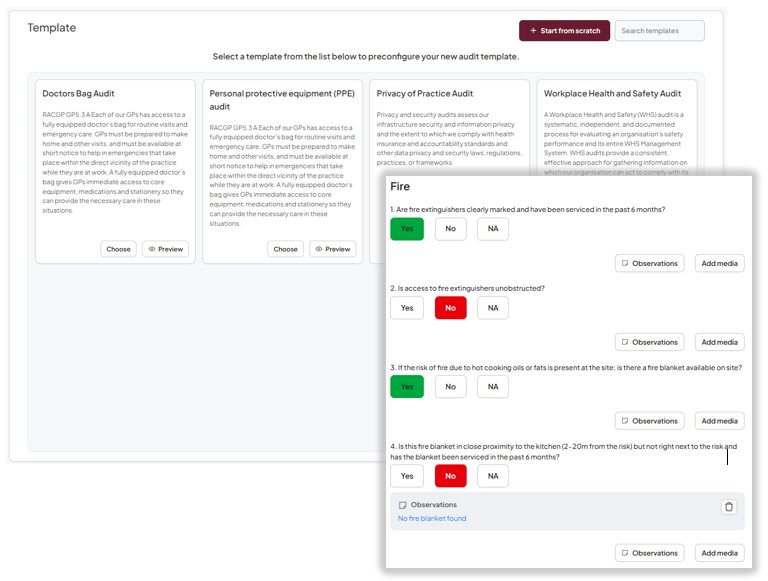
The template builder lets you start with a blank template or choose a pre-built option from the library.
Our template library provides free example audits relevant to most healthcare and quality standards.
Each library template can be modified, allowing you to adapt audit questions to your local requirements.
Read the article to find out more:
Recommendations and Action Plan
This tab serves as the bridge between finding a problem and fixing it.
For auditors: View all recommendations made during the audit. If you are not using an online template, you can manually enter recommendations directly here.
For approval officers: Review every finding before closing the audit. You can turn recommendations into assigned actions, ensuring that audit outcomes lead to tangible organisational change.
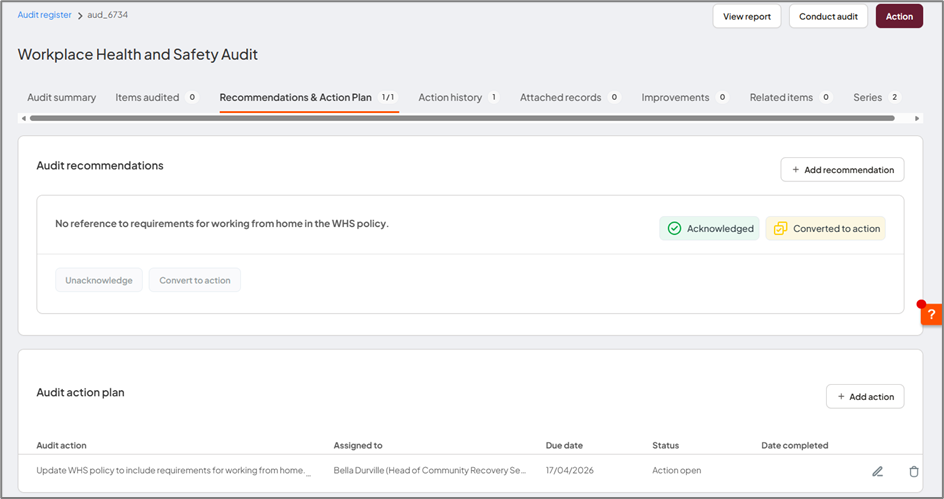
Recommendations and Action Plan helps turn findings into tracked follow-up work.
Analytics
From the left navigation panel, go to Analytics > Audits to access two key reports for tracking trends and outcomes.
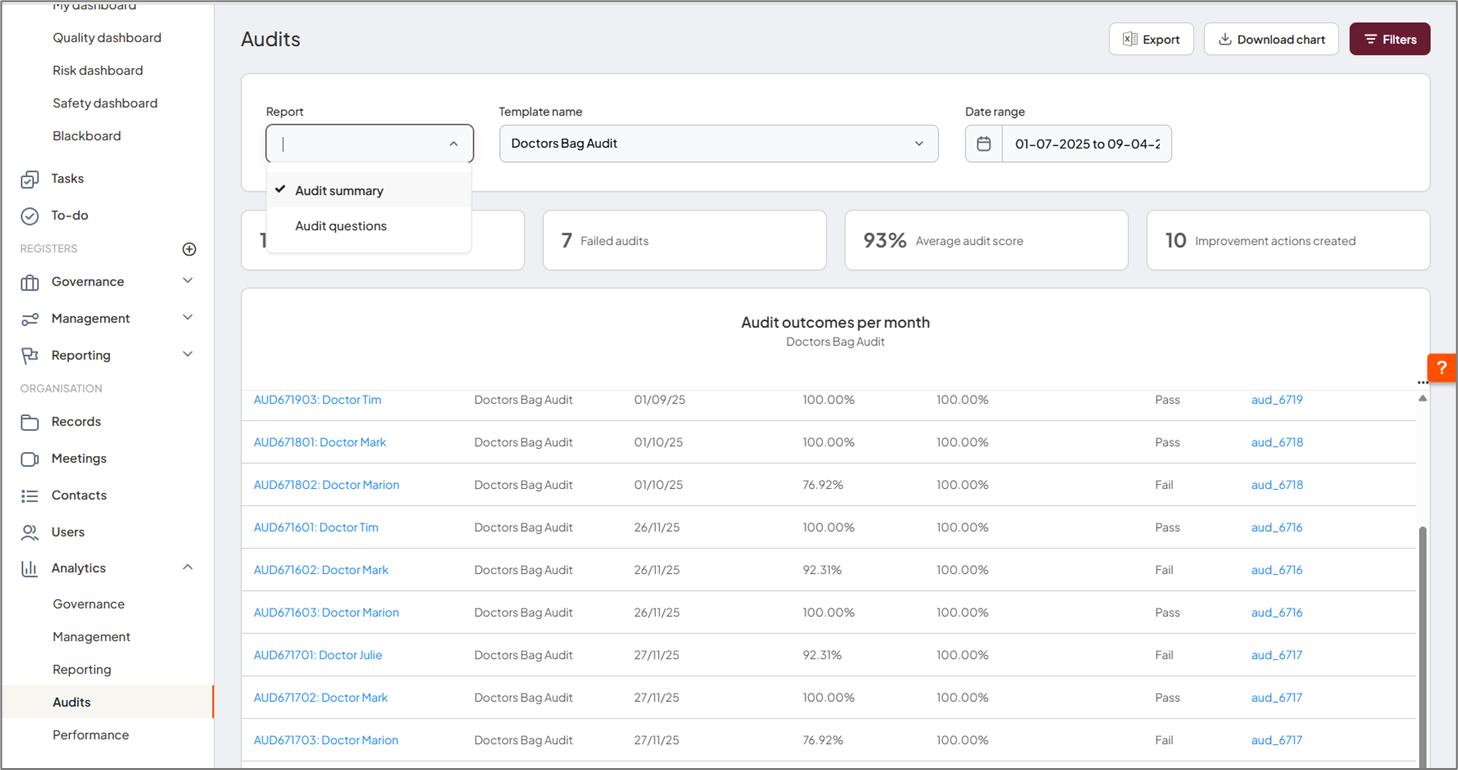
Audit analytics provides report options for tracking audit trends and outcomes.
Audit Summary Report: Filter by template and date range to generate performance graphs. This report tracks pass/fail rates against your benchmarks.
Audit Questions Report: Filter by template, date range, and specific questions for a more detailed drill-down into response trends over time.
The Audit outcomes per month table displays a line-by-line breakdown of all audited items over the selected period. By showing the exact score and outcome for every audit conducted during the period, it helps you identify specific outliers or successes that may be hidden in high-level trend graphs.
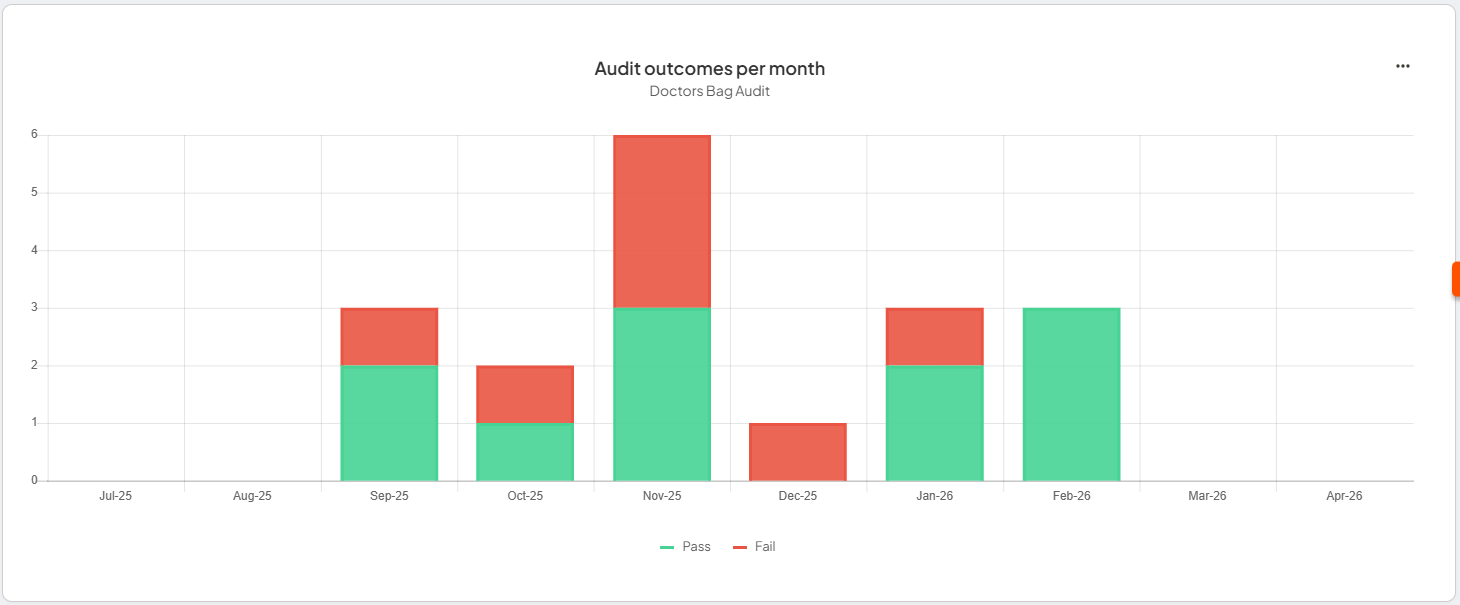
The monthly outcomes table gives a detailed breakdown of audit results over time.
Use the Audit outcomes per month graph to review the ratio of successful audits to failures on a monthly basis. It serves as a high-level health check for operations and helps you spot long-term trends, seasonal fluctuations, or recurring compliance issues.
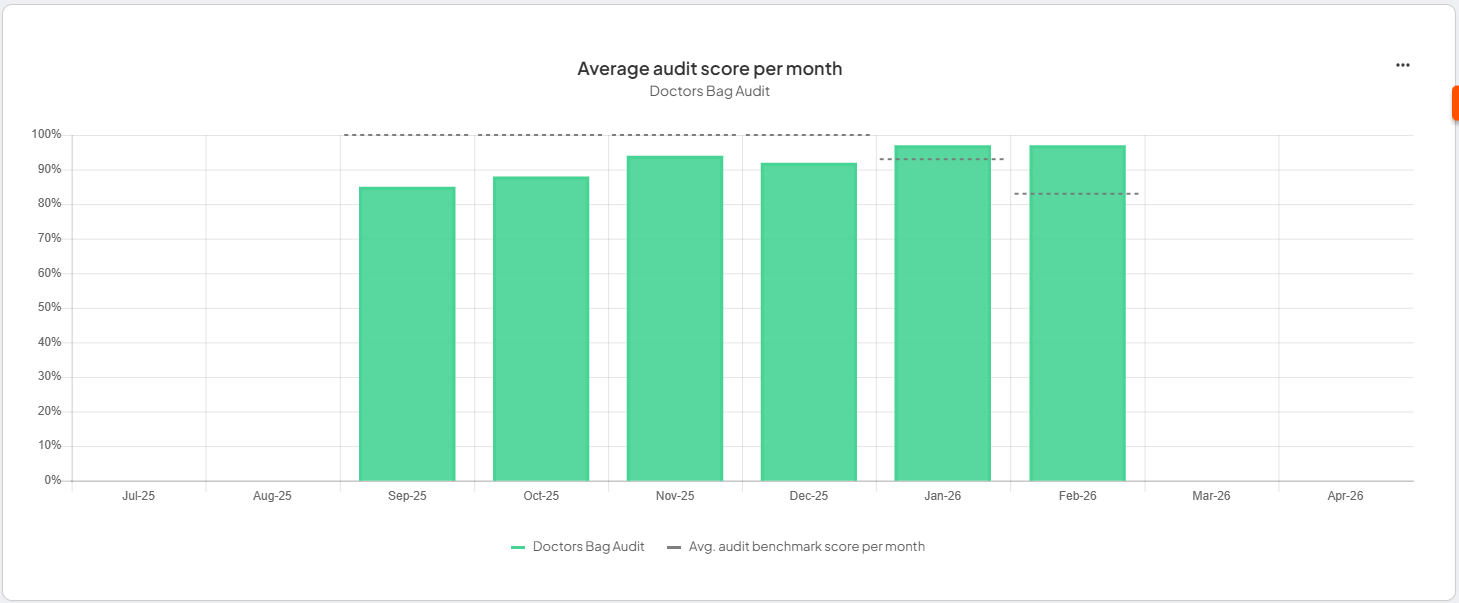
The monthly outcomes graph helps you monitor audit success and failure patterns.
Use the Audit Outcomes Trend Graph to monitor performance consistency. The graph plots the average score of all audited items alongside your target benchmark, helping you identify performance gaps or sustained excellence.
The trend graph compares average performance against your target benchmark.
Use the response trend graph to track responses to specific audit criteria over time.
Read the article to find out more:
Audit report
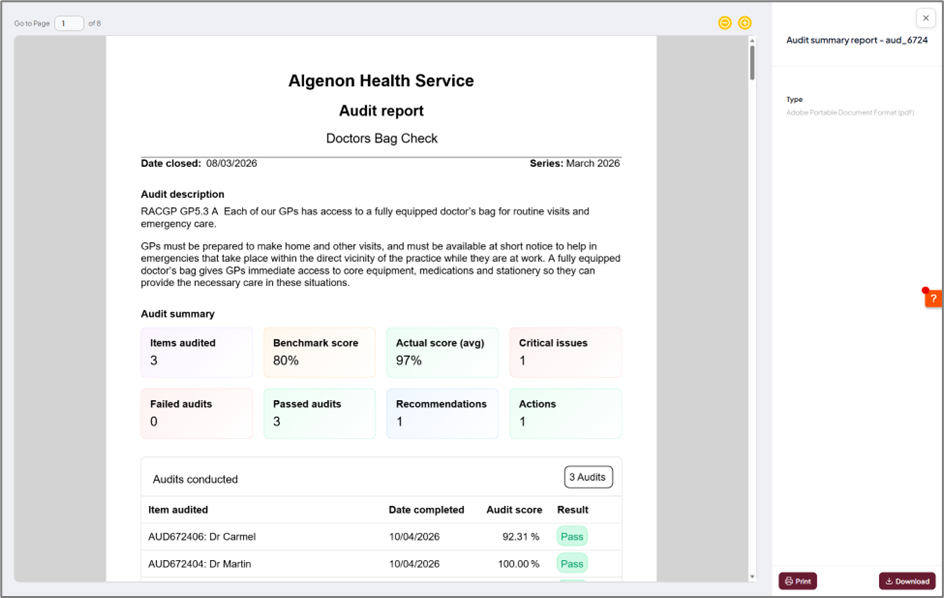
On the Audit Summary page, click View Report to see a summary of all audited items. From there, you can print the report or download it as a PDF for sharing.
To use the report:
- Navigate to the Audit Summary page
- Select View Report to open the full summary
- Optional: Use the print or download icons to save the report as a PDF
The Audit report provides a sharable summary of audited items and outcomes.
Link to accreditation standards
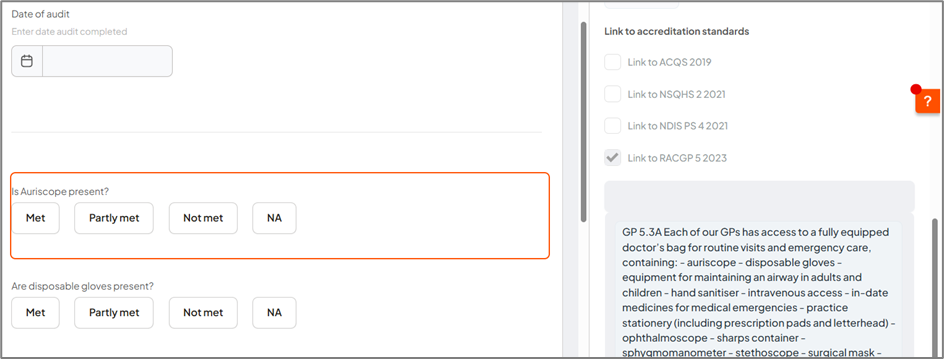
This feature enables you to link specific audit criteria or questions to the requirements of accreditation standards such as NZS 8134, NSQHS, NDIS, RACGP, or ISO.
The ability to link to the requirements of standards depends on the Accreditation Registers and associated Evidence Reports being activated in your platform.
Once linked, you can generate real-time reporting on performance and organisational compliance against the specific requirements of standards.
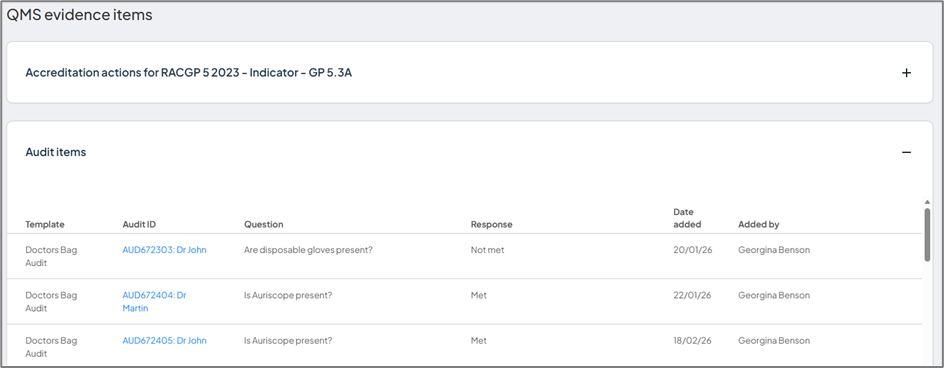
Accreditation linking connects audit questions to specific standard requirements.
Read the article to find out more:
Mobile ready
Take your audits into the field with the Logiqc Mobile App, optimised for seamless on-site inspections and available for both iOS and Android.
Real-time evidence: Capture high-resolution photos directly within the app to provide instant visual evidence. These are automatically attached to your audit responses, creating a transparent and verifiable audit trail.
Offline mode: Complete your audit without a connection. Your data is stored securely on your device and syncs with the main platform once a connection is restored.
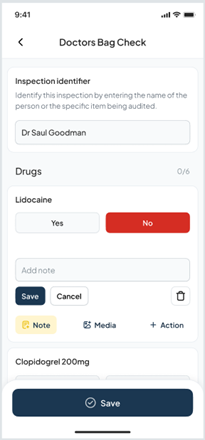
Logiqc Mobile App supports field-based auditing, evidence capture, and offline work.