
After MFA is set up on your account, every sign-in to Logiqc requires a 6-digit code from your authenticator app in addition to your username and password. The code refreshes every 30 seconds and is unique to your device.
This applies to accounts that sign in directly to Logiqc with a username and password. If your organisation uses SSO through Microsoft Entra ID, your sign-in is managed by your identity provider and this process does not apply.
If you haven't set up MFA yet, see Set up MFA.
Q: Do I need to enter a code every time I sign in?
A: Yes. Every sign-in requires a 6-digit code from your authenticator app after your username and password.
Q: What if I get a new phone?
A: If you can no longer generate a code, contact your Logiqc administrator. They can reset your MFA so you can set it up again on your new device.
Q: Does MFA apply to SSO accounts?
A: No. If your organisation uses SSO through Microsoft Entra ID, your MFA is managed by your identity provider. This sign-in process only applies to accounts that sign in with a username and password.
Before you start
Check the following:
- You sign in to Logiqc with a username and password (not SSO).
- MFA is already set up on your account. If not, see Set up MFA.
- Your authenticator app is installed on your mobile device and includes your Logiqc account. If you've lost access, see Reset a user's MFA.
Step 1: Enter your username and password
Go to your Logiqc sign-in page, enter your username and password, then select Sign in.
Step 2: Enter your one-time code
After your password is verified, the Open your authenticator app screen appears. Open your authenticator app, find your Logiqc account, and enter the 6-digit code into the boxes on screen. Select Continue.
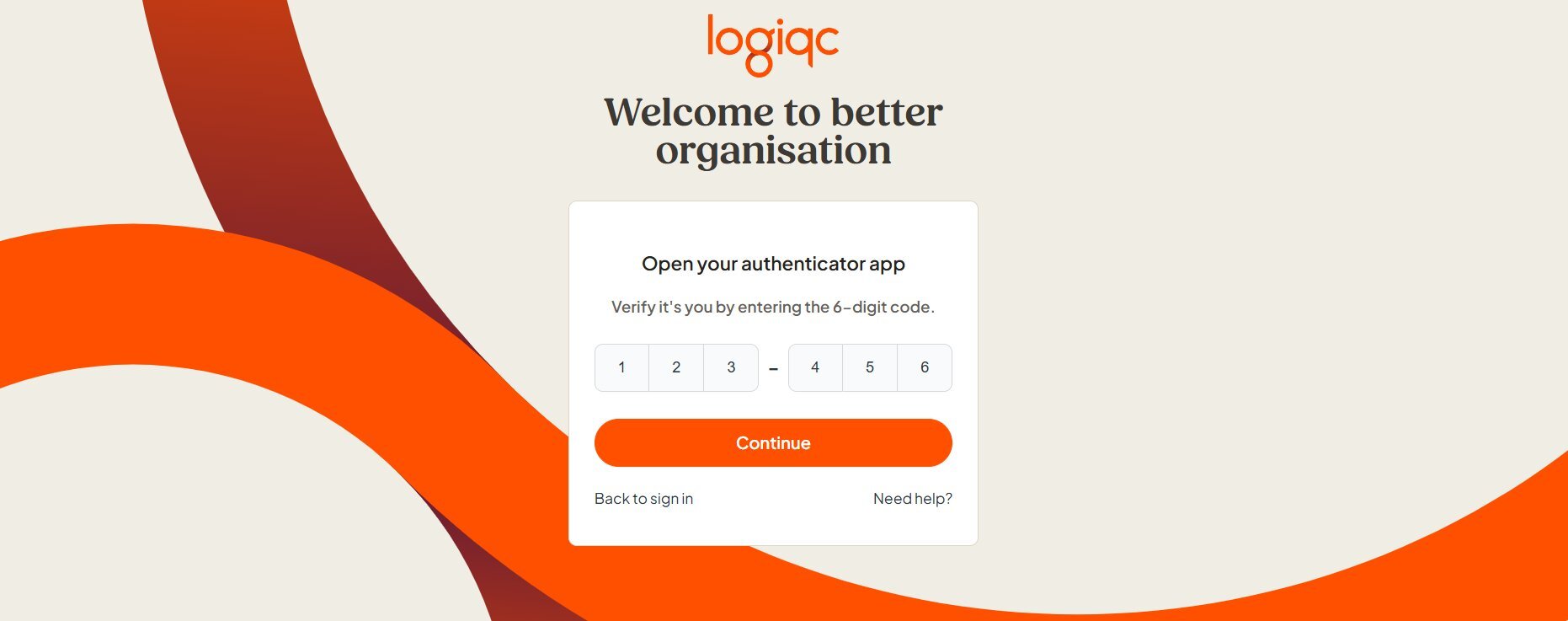
Enter each digit of your 6-digit code, then select Continue.
Authenticator app codes refresh every 30 seconds. If the timer in your app is almost finished, wait for the next code before entering it.
Step 3: Continue to Logiqc
Once your code is accepted, Logiqc opens your dashboard.
If your code is not accepted
- Wait for the current code to refresh and enter the new code.
- Check that your mobile device time is set to automatic in your device settings.
- Make sure you are using the Logiqc account in your authenticator app, not a code for another account.
Incorrect device time is a common reason authenticator codes fail.
If you can't access your authenticator app
Phone lost, app uninstalled, or changed devices
- Select Need help? on the MFA sign-in screen.
- Contact your Logiqc administrator and ask them to reset MFA for your account.
- Let them know your Logiqc username or email address and that you need your MFA reset. You don't need to provide any MFA codes.
After your administrator resets MFA, sign in again with your username and password. Logiqc will guide you through MFA setup again.
What happens next
Once signed in, Logiqc opens your dashboard and works as normal. MFA is checked at each sign-in.
You're signed in
Your dashboard opens and Logiqc works as normal for the rest of your session.
MFA is checked at every sign-in
There's nothing else to manage day-to-day. The same process applies each time you sign in.
If you change devices, contact your administrator
If you lose access to your authenticator app, your Logiqc administrator can reset your MFA so you can enrol again on a new device.
To keep going, see: