
In this article:
Learn how to require multi-factor authentication (MFA) for all non-SSO users in your organisation.
When you turn on organisation-wide MFA enforcement, every user who signs in to Logiqc with a username and password will need to set up and use an authenticator app. Users who sign in via SSO are not affected - their MFA is handled by your SSO provider.
Enforcing MFA for your organisation reduces the risk of account takeover from compromised passwords. Users who haven't already set up MFA will be guided through setup at their next sign-in. They won't lose access - they'll just need to complete setup before continuing.
Turning on enforcement is recommended if your organisation has a security policy that requires MFA, or if you're completing a compliance or assurance review.
Q: What happens to users who already have MFA set up when I turn on enforcement?
A: Nothing changes for them. They keep using their existing authenticator app when they sign in.
Q: Does enforcement apply to SSO users?
A: No. SSO users authenticate through Microsoft Entra ID. Enforcement only applies to non-SSO accounts that sign in with a username and password.
Q: Can I still reset MFA for individual users when enforcement is on?
A: Yes. The Reset MFA button remains available in user administration regardless of enforcement status.
Before you start
Check the following:
- You have administrator access to Logiqc system settings.
- You know whether your organisation uses SSO, non-SSO accounts, or both.
- You're ready to let your users know MFA is coming before you turn it on.
Step 1: Go to General settings
Go to Admin mode, then open System settings and select General settings.
Navigation pathLocated in the top right corner of the screen. Click the ⋮ icon and select Admin mode.
Once in Admin mode, select System settings from the Administration panel on the left-hand side.
Use the Settings type dropdown to choose General settings.
General settings contains the organisation-wide MFA enforcement option.
Step 2: Find the Multi-Factor Authentication setting
In General settings, find the Enforce Multi-Factor Authentication for all users checkbox with the description "Require all users to set up MFA before they can access the system."
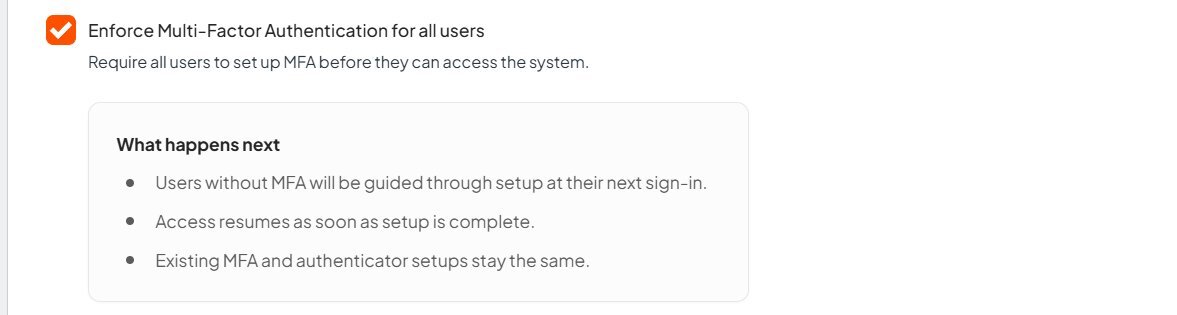
The enforcement checkbox and What happens next panel in General settings.
Step 3: Turn on enforcement
Select the Enforce Multi-Factor Authentication for all users checkbox to turn enforcement on. A "What happens next" panel will appear confirming:
- Users without MFA will be guided through setup at their next sign-in.
- Access resumes as soon as setup is complete.
- Users who already have MFA set up will keep using their existing authenticator app.
Select Save to apply the change.
Step 4: What users will experience
At their next sign-in, non-SSO users who haven't set up MFA will be taken to the MFA setup screen before they can access Logiqc. They'll need an authenticator app on their mobile device. Once they complete setup, they'll be signed in as normal.
Users who already have MFA set up will continue signing in with their existing authenticator app.
What happens next
Once enforcement is on, MFA is required for all non-SSO users at their next sign-in.
Enforcement is active
Non-SSO users must use MFA when they sign in to Logiqc.
Users are guided through setup
Users who haven't set up MFA will be taken through the setup process before accessing Logiqc.
Existing MFA users continue as normal
Users who already have MFA set up keep using their existing authenticator app.
If a user is locked out
Use Reset MFA to help them re-enrol on their next sign-in.
To keep going, see:
