
Logiqc Mobile uses the same MFA process as Logiqc in a browser. After your username and password are accepted, Logiqc Mobile asks for a 6-digit code from your authenticator app.
Authenticator app codes refresh regularly, usually every 30 seconds. If your code is close to expiring, wait for the next code before entering it.
Q: Can I copy and paste the code?
A: Yes. If your authenticator app lets you copy the code, you can copy it, return to Logiqc Mobile, and paste or enter it into the code boxes.
Q: What if I can't scan a QR code on my phone?
A: Use the manual setup key instead. Logiqc Mobile shows a setup key that you can copy and add to your authenticator app.
Q: What if I can't access my authenticator app?
A: Select Need help? on the sign-in screen and contact your Logiqc administrator. They can reset your MFA so you can set it up again.
Before you start
Check the following:
- You have Logiqc Mobile installed on your device.
- You know your Logiqc username and password.
- You have an authenticator app installed, such as Microsoft Authenticator or Google Authenticator.
Step 1: Enter your sign-in details
Open Logiqc Mobile and enter your username and password.
Select Sign in. If MFA is required, the Open your authenticator app screen appears.
Step 2: Enter your one-time code
Open your authenticator app and find your Logiqc account. Copy the 6-digit code if your authenticator app supports copying, or remember the code.
Return to Logiqc Mobile, paste or enter the code into the boxes on screen, then select Continue.
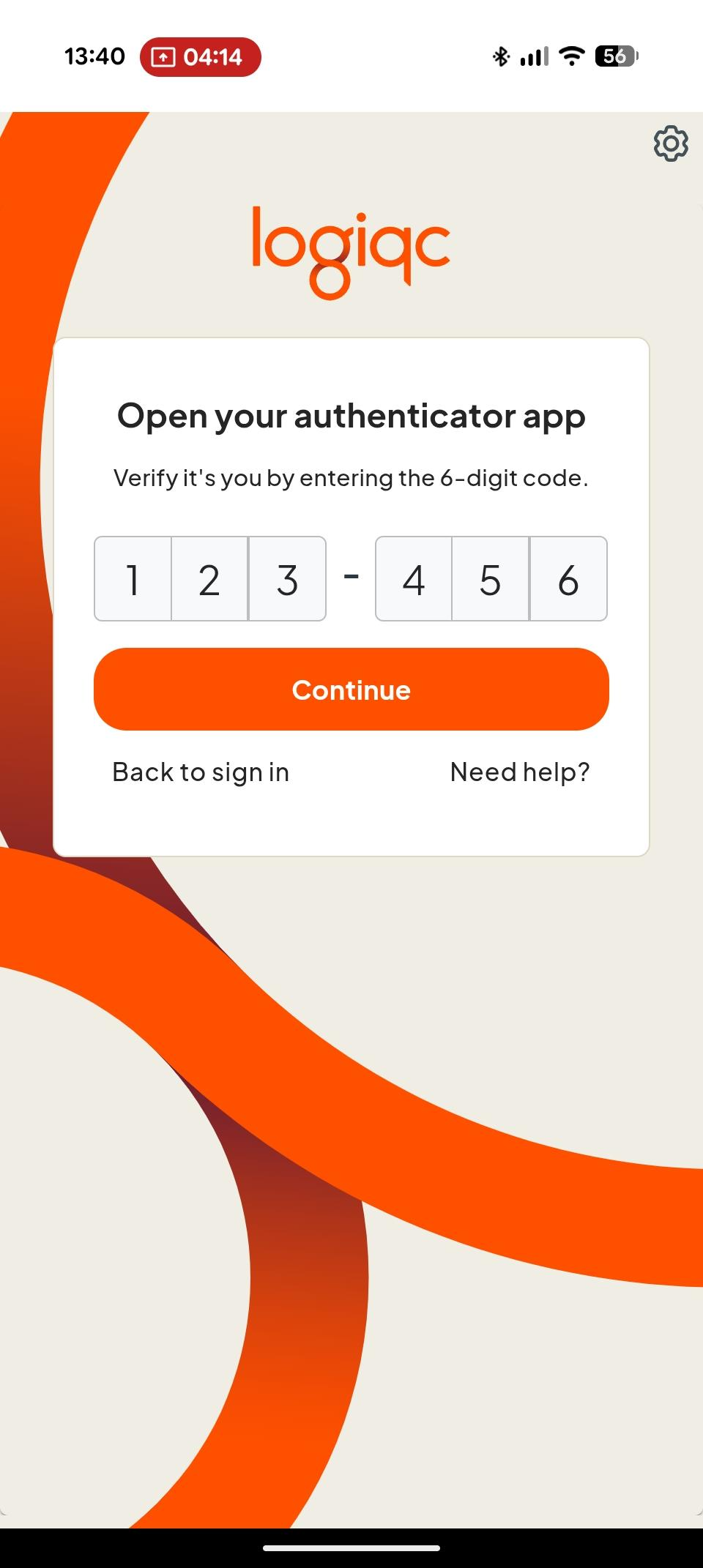
Enter the 6-digit code from your authenticator app into the boxes, then select Continue.
If you're asked to set up MFA on mobile
If MFA has not been set up for your account yet, Logiqc Mobile shows a setup key screen. Copy the setup key and add it to your authenticator app.
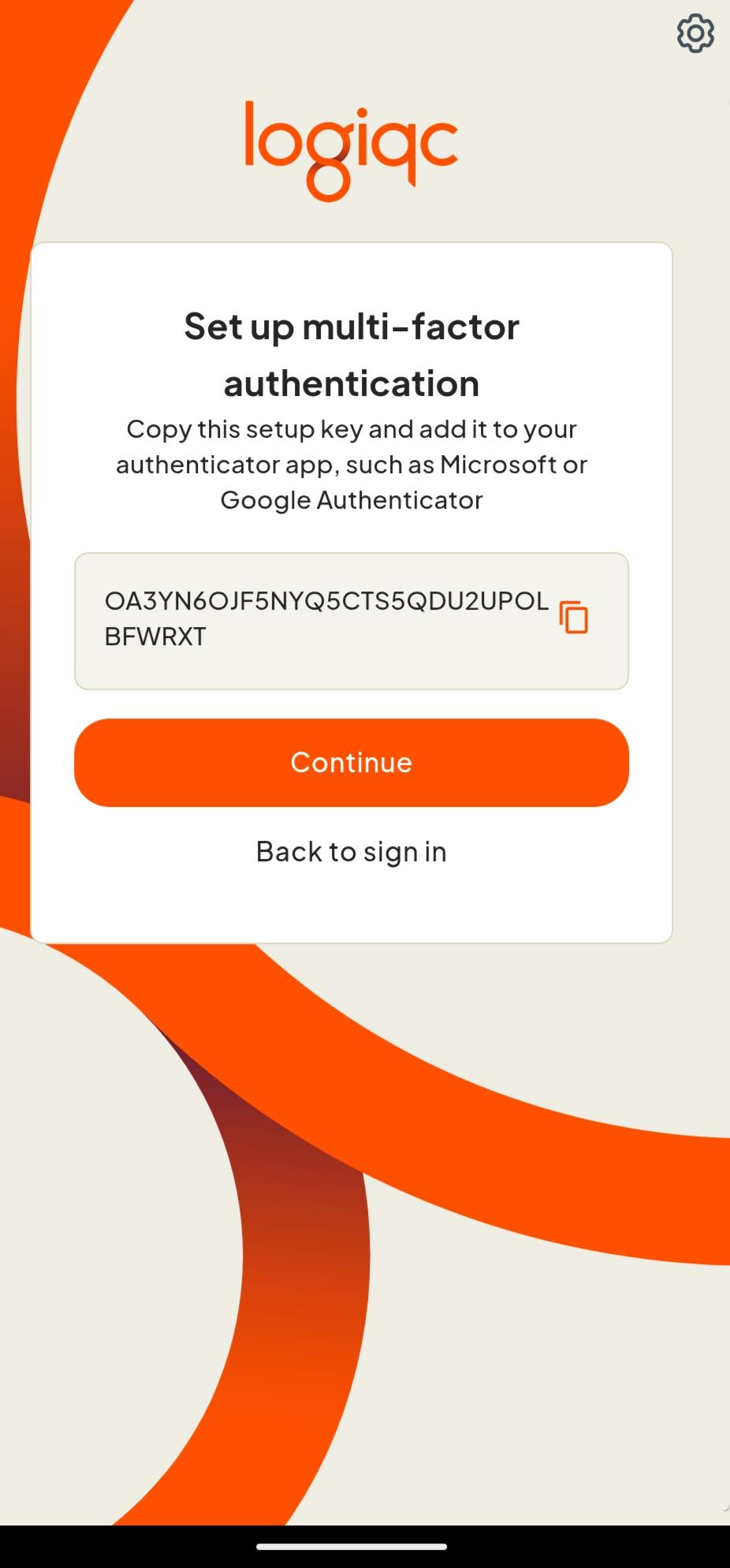
Copy the setup key shown in Logiqc Mobile and add it to your authenticator app manually.
- Select the copy icon next to the setup key in Logiqc Mobile.
- Open your authenticator app.
- Add a new account and choose the option to enter a setup key manually.
- Paste the setup key from Logiqc Mobile into your authenticator app.
- Return to Logiqc Mobile and select Continue.
- Enter the 6-digit code from your authenticator app, then select Continue.
Troubleshooting
The code is not accepted
- Wait for the next code in your authenticator app and try again.
- Check that your mobile device time is set to automatic in your device settings.
- Make sure you are using the code for your Logiqc account, not another account in your authenticator app.
The code expired before I entered it
- Authenticator app codes refresh regularly. If the timer is almost finished, wait for the next code before copying or entering it.
I can't access my authenticator app
- Select Need help? on the MFA sign-in screen.
- Contact your Logiqc administrator and ask them to reset MFA for your account.
- After your MFA is reset, sign in again and follow the setup steps.
What happens next
Once your code is accepted, Logiqc Mobile signs you in.
You're signed in
You can continue using Logiqc Mobile as normal.
Use a new code each time
Each MFA sign-in requires the current one-time code from your authenticator app.
To keep going, see: