
In this article:
Learn how to set up multi-factor authentication (MFA) for your Logiqc account using an authenticator app.
MFA adds a second layer of security to your sign-in. Once set up, you'll enter a one-time code from your authenticator app each time you sign in. This only applies to accounts that sign in directly with a username and password. If you use single sign-on (SSO), your organisation's SSO provider manages your sign-in security.
MFA protects your account if your password is ever compromised. With MFA enabled, a password alone is not enough to access your account. An attacker would also need access to your authenticator app.
Your administrator may have turned on MFA for your organisation, or it may have been enabled just for your account. Either way, you'll be guided through setup the next time you sign in.
Q: Do I need to set up MFA again if I change devices?
A: Yes. If you get a new phone or reinstall your authenticator app, you'll need to contact your Logiqc administrator to reset your MFA, then set it up again.
Q: What if my code keeps failing?
A: The most common cause is the time on your mobile device not being set to automatic. Check your device settings and try again.
Q: Does MFA apply to SSO accounts?
A: No. If your organisation uses SSO through Microsoft Entra ID, your MFA is managed by your identity provider. This setup process only applies to accounts that sign in with a username and password.
Q: My organisation uses SSO, but I sign in with a username and password. How do I reach the Logiqc sign-in page?
A: Add /login to the end of your Logiqc URL (for example, yourcompany.logiqc.com.au/login). This takes you to the local Logiqc sign-in page instead of your organisation's SSO login page.
Before you start
Check the following:
- You sign in to Logiqc with a username and password (not SSO).
- MFA has been enabled or enforced for your account by your administrator.
- You have a mobile device with an authenticator app installed. Common options include Google Authenticator, Microsoft Authenticator, and Authy - all free from the App Store or Google Play.
Step 1: Sign in with your username and password
Go to your Logiqc sign-in page and enter your username and password as usual. Select Sign in.
If MFA has been enabled for your account and you haven't set it up yet, you'll be taken to the MFA setup screen instead of your dashboard.
Setting up on Logiqc Mobile? The process is slightly different, see:
Step 2: Set up your authenticator app
On the Set up multi-factor authentication screen, you'll see a QR code and a text setup key.
- Open your authenticator app on your mobile device.
- Select the option to add a new account (look for a + button or Add account).
- Scan the QR code shown on screen. If your device can't scan the code, select Can't scan the code? to reveal the manual setup key, then enter that key into your authenticator app manually.
- Your authenticator app will generate a 6-digit code. Leave the app open.
Once your authenticator app shows the code, select Continue on the Logiqc setup screen.
Step 3: Enter your one-time code
On the Open your authenticator app screen, enter each digit of the 6-digit code from your authenticator app into the individual boxes on screen, then select Continue.
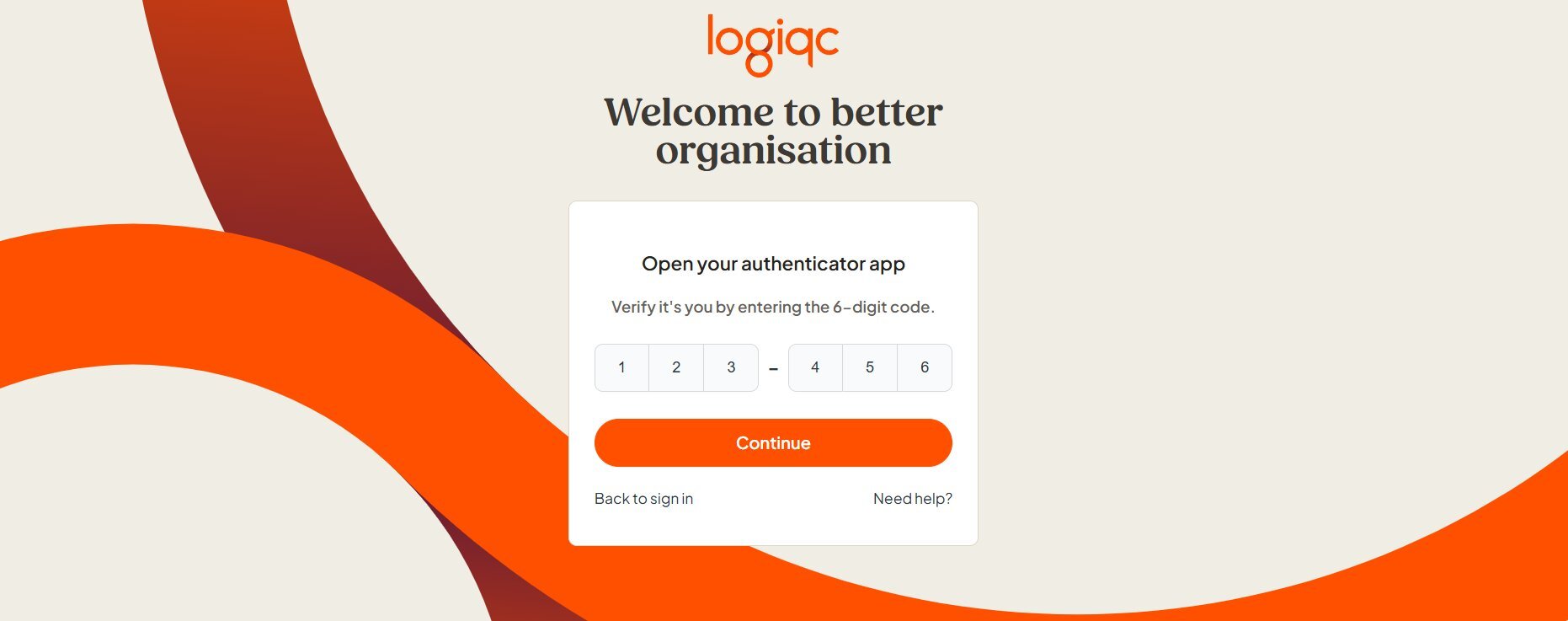
Enter each digit of your 6-digit code, then select Continue.
Codes refresh every 30 seconds. If the timer in your app is almost up, wait for the next code before entering it.
Step 4: You're in
Once your code is verified, MFA setup is complete and you'll be taken to your Logiqc dashboard. From this point on, you'll be asked to enter a code from your authenticator app each time you sign in.
Troubleshooting
My code isn't being accepted
- Make sure you're entering the code before it expires. Codes refresh every 30 seconds - if the timer is almost up, wait for the next code.
- Check that the time on your mobile device is set to automatic in your device settings. Incorrect device time is the most common cause of code failures.
- Make sure you're using the correct account in your authenticator app. If you have multiple accounts, check you've selected the one for Logiqc.
I'm taken to a Microsoft or company sign-in page instead of the Logiqc sign-in page
- This happens when your organisation uses SSO but your account signs in with a username and password. Add /login to the end of your Logiqc URL to go directly to the local Logiqc sign-in page, then sign in as normal.
I can't scan the QR code
- Select Can't scan the code? on the setup screen to reveal the manual key. Enter this key into your authenticator app to add the account manually.
I no longer have access to my authenticator app
- Select Need help? on the sign-in screen and contact your Logiqc administrator. They can reset your MFA so you can set it up again.
What happens next
Once MFA is set up, every sign-in to Logiqc will require a 6-digit code from your authenticator app after your username and password.
MFA setup is complete
You'll be taken to your Logiqc dashboard and can start working straight away.
MFA is required at every sign-in
Each time you sign in, you'll enter your username and password followed by a 6-digit code from your authenticator app.
Your account is protected
If you ever lose access to your authenticator app, contact your Logiqc administrator. They can reset your MFA so you can enrol again.
To keep going, see: