
In this article:
Learn how to reset multi-factor authentication (MFA) for a user in Logiqc.
If a user can no longer sign in because they've lost access to their authenticator app, you can reset their MFA. This clears their current MFA setup and prompts them to enrol again at their next sign-in. Their account stays active and subject to any MFA policy that applies.
Reset a user's MFA when they can no longer sign in because they've lost access to their authenticator app - for example, if they've changed phones, uninstalled the app, or can no longer generate a code.
Resetting clears their current setup so they can enrol again at their next sign-in. It does not disable MFA for their account.
Q: Does resetting MFA disable it for the user?
A: No. Resetting only clears the user's current MFA setup. If MFA is required for their account, they'll be prompted to enrol again at their next sign-in.
Q: Will the user be notified when their MFA is reset?
A: No. The user does not receive an automatic notification. You'll need to contact them directly to let them know.
Q: Is the reset recorded anywhere?
A: Yes. MFA resets are recorded in the audit log.
Before you start
Check the following:
- You have administrator access to user administration in Logiqc.
- The user has a non-SSO account (username and password).
- The user has contacted you because they can't complete MFA sign-in.
Step 1: Go to Admin mode
Navigation pathLocated in the top right corner of the screen. Click the ⋮ icon and select Admin mode.
Once in Admin mode, select Users from the Administration panel on the left-hand side.
Find the user whose MFA you need to reset.
Step 2: Open the user's account
Find the user whose MFA you need to reset and select their name to open their account.
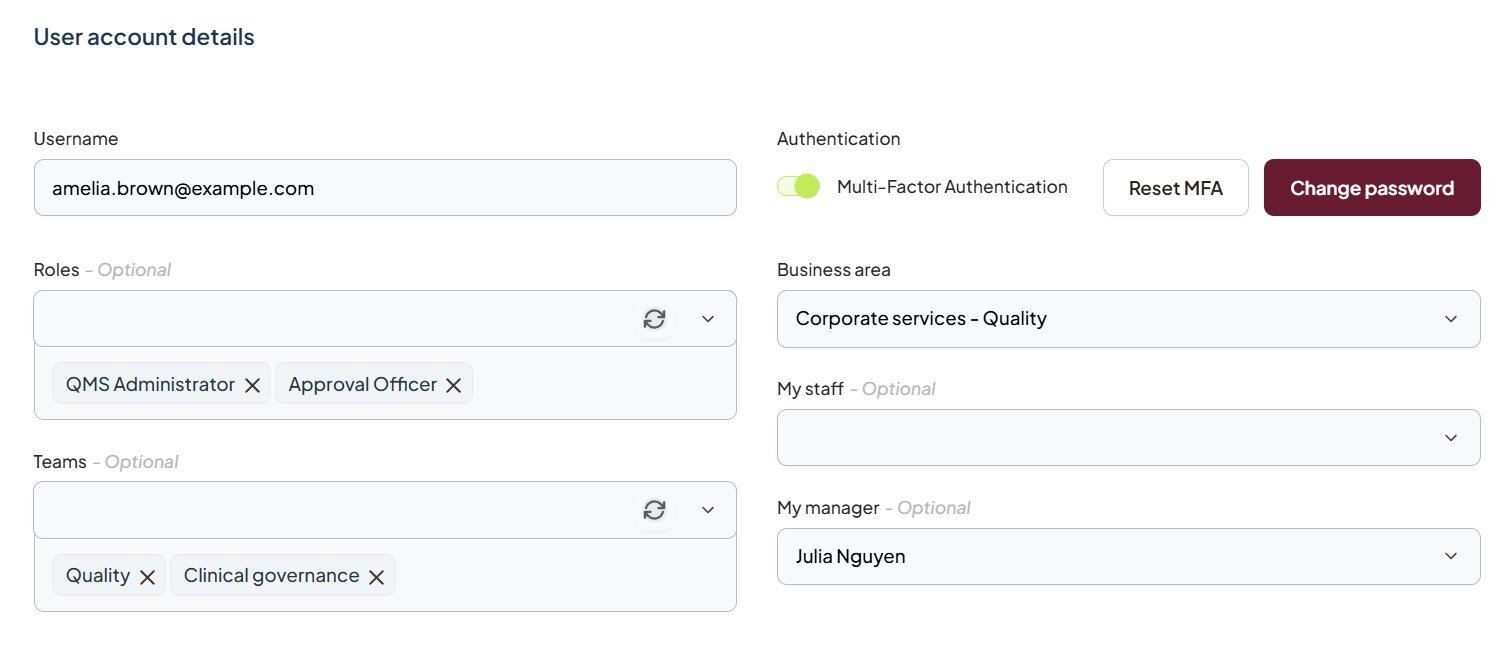
The Reset MFA button sits next to the Multi-Factor Authentication toggle in the Authentication section.
Step 3: Find the Reset MFA button
In the User account details section, look for the Authentication section in the top right. You'll see the Reset MFA button next to the Multi-Factor Authentication toggle.
Step 4: Select Reset MFA
Select Reset MFA. A confirmation dialog will appear asking you to confirm the reset.
Select Confirm to proceed, or Cancel to go back without making any changes.
Step 5: Let the user know
The user will not receive an automatic notification. Contact them directly by email or however your organisation usually communicates, and let them know they can now sign in and complete MFA setup again.
What happens next
The user's MFA is cleared and they can sign in and enrol again straight away.
MFA setup is cleared
The user's existing authenticator app link is removed. Their account remains active and subject to any MFA policy that applies.
The user is guided through setup again
At their next sign-in, the user will be taken through the MFA setup process. They'll need an authenticator app on their mobile device.
Access is restored
Once the user completes setup, they're signed in as normal. The reset is recorded in the audit log.
To keep going, see:
