
In this article:
Learn how to record recommendations and manage follow-up actions when conducting audits in Logiqc.
With Logiqc Auditor, you can acknowledge recommendations, convert them to actions, and assign follow-up work.
Tip: For a detailed step-by-step guide, see the Academy tutorial below.
Audits move through two stages:
- Action stage: the Action Officer completes the audit and records recommendations, then submits it to move to the next stage.
- Review and Close stage: the Approval Officer reviews the recommendations, assigns any follow-up actions, and closes the audit. Actions remain open until complete.
Recommendations help capture improvement opportunities identified during an audit, even when they do not yet need formal follow-up.
Recommendation
Records an improvement point or suggestion identified during the audit.
Action
Creates formal follow-up work that can be assigned, tracked, and completed.
Q: Can a recommendation be acknowledged without creating an action?
A: Yes. The Approval Officer can acknowledge a recommendation without converting it into an action.
Q: Can a recommendation be converted into an action later?
A: Yes. A recommendation can be converted into an action when formal follow-up work is required.
Q: Who usually completes the Action taken field?
A: The Action taken field is usually completed by the user assigned to complete the action.
Q: Which licence type can complete audit actions?
A: It depends on the user's licence type:
- Approval: Can complete any audit action.
- Action: Can complete only their own assigned audit actions.
- Read & Report: Cannot receive or complete any audit actions.
Before you start
Check the following:
- You have Logiqc Auditor.
- You are in Admin mode.
- You have the required permission to access and update audit follow-up items.
Step 1: Open the audit
Navigate to the audit record:
Navigation path
Click on the audit name to open the Audit summary page.
Click on the audit to open the Audit summary page, then select the Recommendations & Action Plan tab.
Step 2: Add or review recommendations
During the Action stage, the Action Officer records any recommendations identified during the audit. To add a recommendation, click + Add recommendation Located on the right-hand side at the top of the Recommendations & Action Plan tab. , type the recommendation, and click Save.
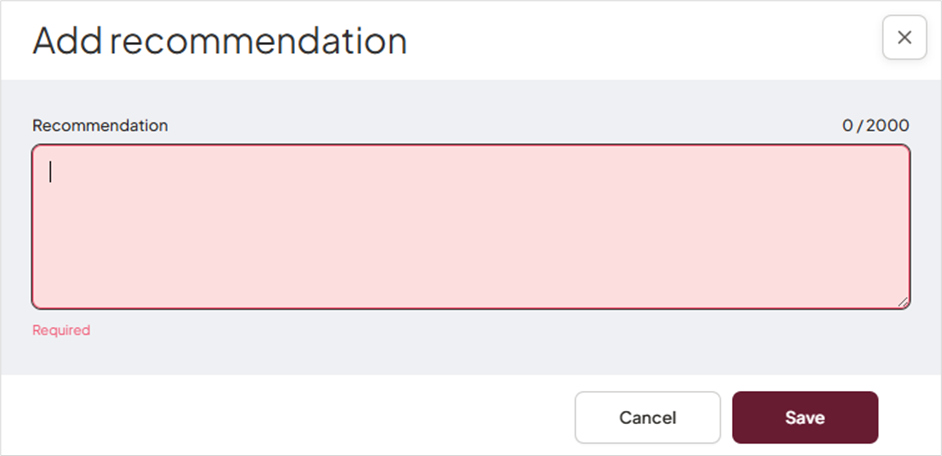
Add recommendations during the Action stage of the audit.
Step 3: Acknowledge or action recommendations
In the Review and Close stage, the Approval Officer reviews the recommendations and decides what follow-up is needed. For each recommendation, choose one of the following:
Acknowledge
Use this when the recommendation has been noted and does not need formal follow-up.
Convert to action
Use this when the recommendation needs assigned work and tracking.
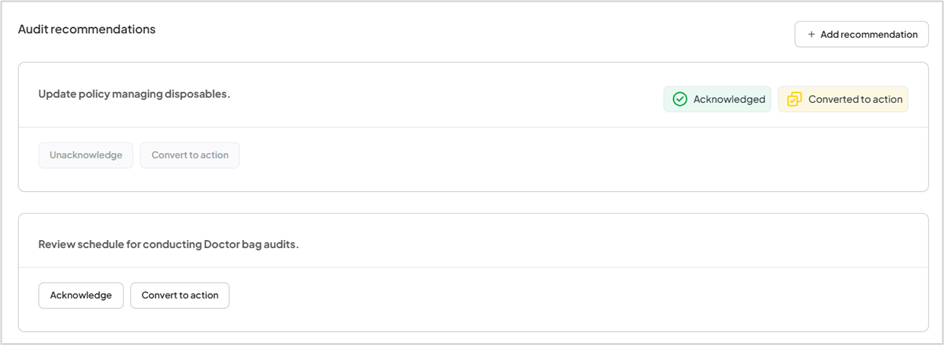
Review each recommendation and decide whether to acknowledge it or convert it into an action.
Step 4: Add and assign an action
To add an action, click + Add action Located at the bottom of the Recommendations & Action Plan tab. , complete the required fields, and click Save.
The Action taken field is usually completed by the user assigned to complete the action.
Who can be assigned an action and complete it depends on licence type. See the FAQs near the top of this article for the breakdown.
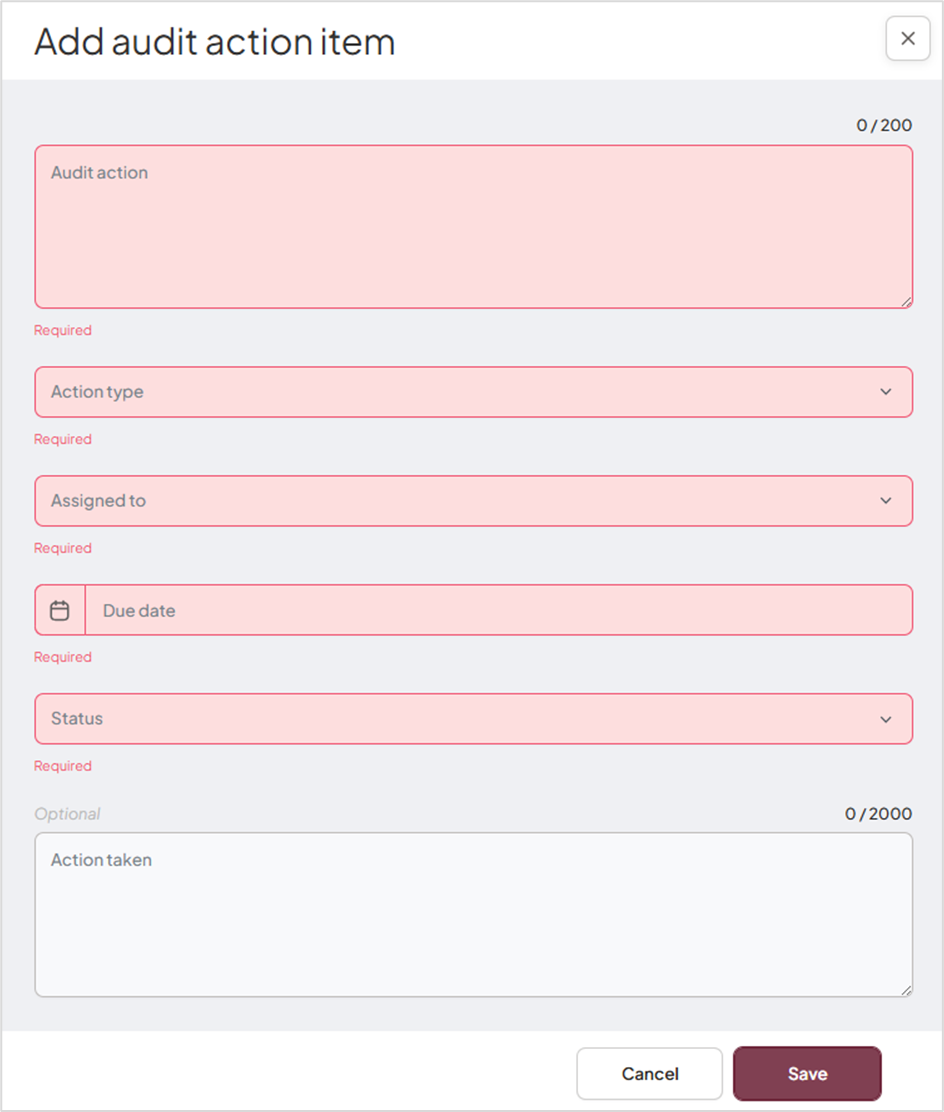
Complete the required fields to create and assign an action.
What happens next
Actions flow through to the Task Register
Converted or newly added actions become assigned tasks that can be managed and followed up through the Task Register.
Follow-up becomes easier to track
Recommendations and actions stay connected to the audit, making accountability and progress easier to monitor.