
In this article:
Learn how to use AI to fill in the Feedback details page from a written description.
Instead of completing every field by hand, describe what happened and let AI suggest values for supported fields for you to review.
This article covers opening the page, using AI to fill it in, and reviewing the AI-updated fields before you submit.
Completing a feedback report field by field can be repetitive. If you have already described what happened, AI can use that description to suggest values for supported fields so you are checking rather than typing everything from scratch.
What AI will do
Populate supported feedback fields from your description, and mark each updated field with a sparkle icon so you can review what changed.
What AI won't do
Control who can view the feedback, submit the report on its own, or connect to local files and external systems. Access control ultimately remains a human decision, though your organisation's Business Rules can automatically pre-fill these fields and the fields in the Assign component.
The more useful detail you provide in the description, the better the AI result will usually be.
Q: Why is the AI fill-in button greyed out?
A: The button stays greyed out until there is a description for the AI to work from. It doesn't need to be long, just enough for the AI to have something real to build on.
Q: Does opening the page or typing my description use credits?
A: No. Credits are only used when you select Fill in this form using AI. Writing your description first, at no cost, is what lets the AI do a good job when you do use it.
Q: Can AI submit the feedback report for me?
A: No. You need to review the AI-updated fields, tick the validation checkbox, and submit the report yourself. Access control stays fully human. The AI only works with what's in front of it on the page, and it can't access your local files or other systems.
Q: Does this use AI credits?
A: Yes. AI fill-in uses your organisation's AI credit allowance. See Track AI usage and credits.
You will need
- You have a Report only, Read & Report, Action, or Approval licence, and the Report feedback permission.
- Your organisation is on a Pro or Enterprise plan.
- AI assistance for Feedback is enabled for your organisation, and you have enough AI credits available.
Step 1: Open the Feedback details page
Select Create in the header, then select Feedback.
Navigation path
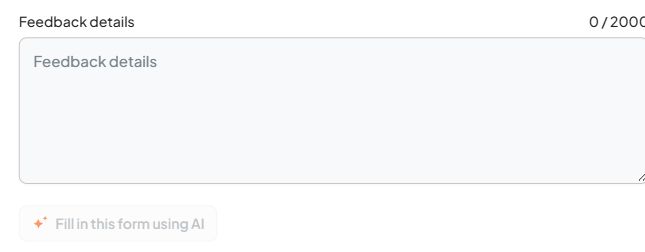
The AI fill-in button appears below the Feedback details field, greyed out until you enter a description.
Step 2: Use AI to fill in feedback fields
Write your feedback description in the Feedback details field. Include the key details the AI needs: what happened, who was involved, where and when it happened, and any immediate action taken.
Select Fill in this form using AI to have AI populate the supported feedback fields. This is the only step in this process that uses AI credits.

The button becomes available once there is a description for the AI to use.
Step 3: Review and validate AI-updated fields
Review each field the AI has updated. AI-updated fields are marked with a sparkle icon , so you can see what the AI changed compared with what you typed yourself.
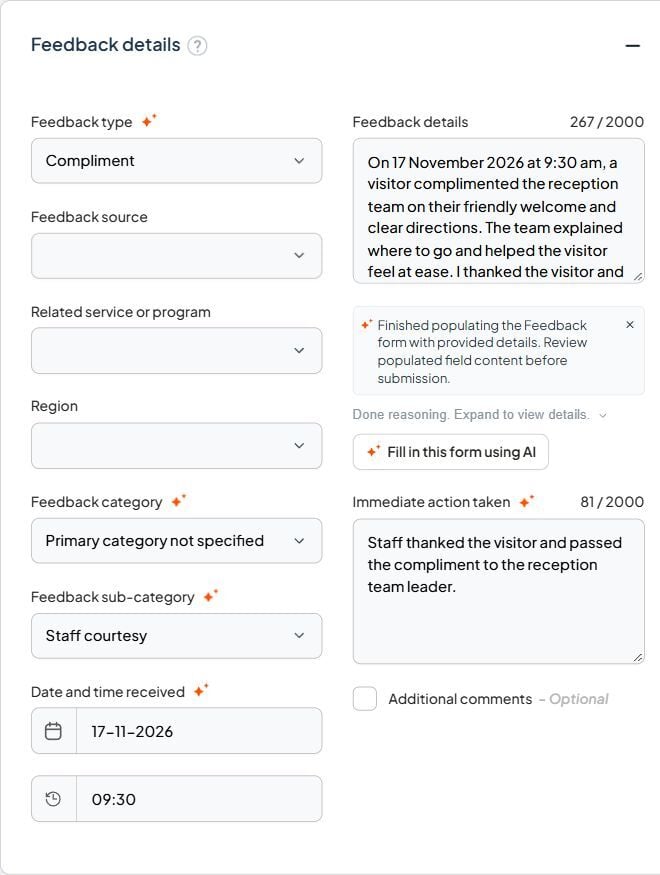
When you have checked the AI-updated fields, tick I have validated all fields updated with AI, then submit the feedback report. If any field on the page has been touched by AI, this checkbox must be ticked before the Submit button becomes available. Check any other required fields before submitting.

Troubleshooting
"The AI fill-in button is greyed out"
- Check that the Feedback details field contains text.
- Make sure AI is turned on for your organisation in Admin mode > General settings.
- If credits are exhausted, AI will not be available until credits reset or more credits are added.
"I can't select Submit"
- Tick I have validated all fields updated with AI. This is required whenever AI has updated any field on the page.
- Check any other required fields the page is asking you to complete.
What happens next
You review and validate
You check the AI-updated fields and tick the validation checkbox yourself. AI cannot submit the report on its own.
The report is submitted and saved
Once you select Submit, the details you reviewed are saved with the feedback report.