
This article covers the following:
- About the Incident register settings
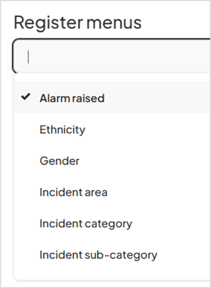
- About the Incident register menus
- Configuring Incident Register Dropdown Menus
Permissions: Access to these settings requires the Admin permission 'Edit system settings'. Learn more about Administration permissions.
About the Incident register settings
The Incident register settings provides the ability to activate various features that enhance the functionality of the Incident register. These features are detailed in the table below.
Important note: When these features are selected, they are activated immediately. Please carefully consider the potential impact on your organisation before enabling them.
| Setting type | Description |
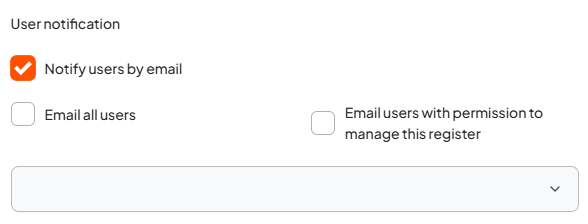
| Enable controls to 'bulk send' notifications to all users and/or to all approval licence holders |
This setting allows you to notify a group of users in bulk. This setting reveals 2 options:
Note: This setting does not change or extend a user’s existing viewing permissions. It only sends them a notification about the incident. If a user is notified but does not have permission to view the incident, they will not be able to access its details. |
| Set 'Person/s involved' component to mandatory | This setting makes the Persons involved component mandatory, requiring users to record details of individuals involved in the incident at the time of submitting the incident. |
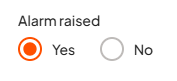
| Alarm raised component |
This enables a radio button on the Incident details form giving users the option to select if an alarm was raised during the reported incident.
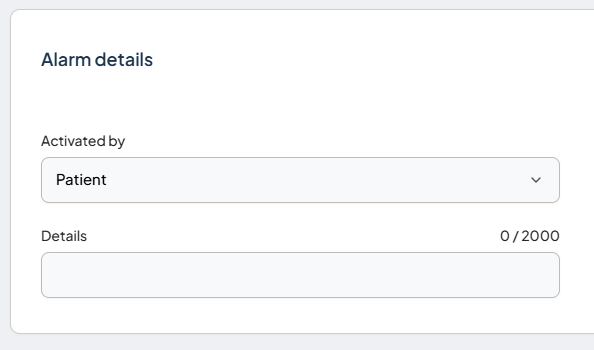
If this option is selected, an additional ‘Alarm details’ component appears on the Incident details form. This allows the user to choose from a predefined list of options and add further information in a free-text field. The ‘Activated by’ list can be configured in the Incident register menus.
|
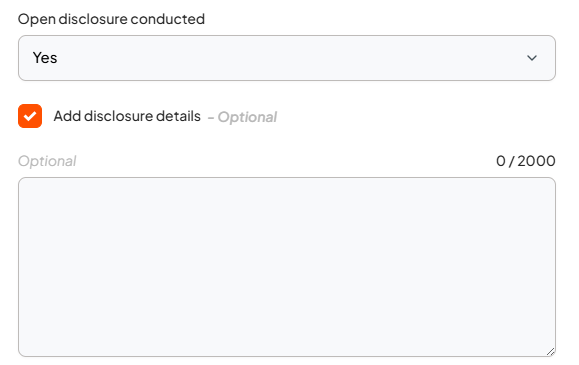
| Open disclosure details |
This reveals an additional drop down option in the Manage and Close stage, allowing the manager or approver the option to add disclosure details.
|
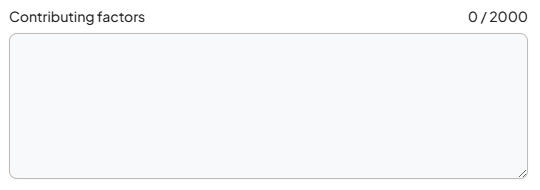
| Contributing factors field |
This adds a text field to the Incident details form, allowing users to record additional information about any contributing factors related to the reported incident.
|
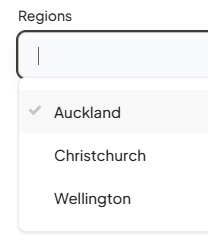
| Related region |
This adds a dropdown menu to the Incident details form, allowing users to select the geographical location where the incident took place. You can add your regions via the 'Regions' setup list under the Incident register menus.
|
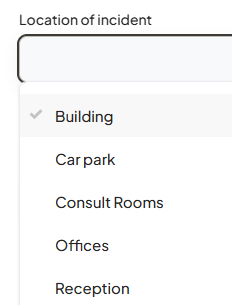
| Location |
This adds a dropdown menu to the Incident details form, allowing users to record the specific location where the incident occurred.
|
| Hide identified issues and improvement component at the reporting stage | This setting hides the Identified issues and improvements component at the time the incident is reported. This helps prevent unnecessary improvements being raised by the initial reporter. |
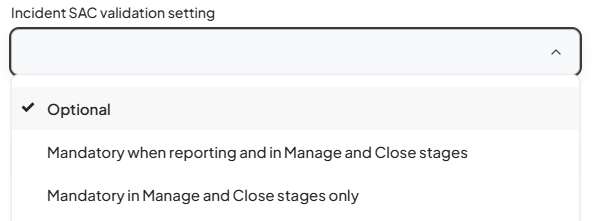
| Incident SAC validation setting |
You can choose whether to set the severity rating as optional or mandatory
|
| Default viewing permission for incidents | Allows you to set the default viewing permissions for all reported incidents, ensuring that only the appropriate teams can access incident records. |
| Users to be notified when draft items are created via the API |
This feature only displays if the Incident register integration API has been activated. The Incident register integration API supports an integration with your website or other platforms enabling incidents to be reported through another platform. When an incident is reported through another platform, the incident is added as a draft item in the Logiqc Incidents register and staff who are selected in this field are notified. Learn more. |
| Email address |
If you have a team email for receiving incidents, you can add the team email here. This is an optional field. When an incident is reported through another platform, notification will be sent to this email as well as to the email accounts of those who have been selected in the field ‘Users/positions’. |
About the Incident register menus
The following menus appear in the Incident details form. For some of these menus, Logiqc has added example content based on your industry. Others have been left blank as they are specific to your organisation. All these menus can be modified by your organisation.
| Menu label | Description |
| Alarm raised |
Visible with the feature ‘Alarm raised component’ The feature appears in the Incident details form as ‘Alarm raised?’. When user selects ‘Yes’ an additional component appears – ‘Alarm details’ allowing the user to select a drop-down list of who activated the alarm e.g., Staff / Patient |
| Assets |
If the incident involved company assets/equipment/vehicles, you can add this information to the Related or damaged assets section of the incident details form. This list also appears in the Repairs register. Note: This menu only appears if the Assets register is not included in your Logiqc subscription. If the Assets register is activated, you can instead link the incident directly to an existing asset. |
| Ethnicity |
This menu appears in the Persons involved component of the Incident details form. With this feature, you can code the ethnicity of the individuals involved. The menu options presented for Australian based organisations are those defined in the Australian Standard Classification of Cultural and Ethnic Groups and the menu options presented for New Zealand based organisations are those defined in Ethnicity New Zealand Standard Classification 2005 V2.0.0. Instances of 'nec' refer to "Not Elsewhere Classified". Instances of 'nfd' refer to "Not Further Defined". |
| Gender |
This menu appears in the Persons involved component of the Incident details form and is a mandatory menu. With this feature, you can code the gender of the individuals involved. Note: You can add an N/A option if your organisation is not required to record this information. |
| Incident area |
When reporting an incident on the Incident register, this menu allows you to categorise the incident according to its area within the organisation, such as clinical, operations, work health and safety. This classification represents the highest level of incident categorisation. You can filter and analyse the ‘incident area’ in both the register and analytics. Note: A maximum of six labels can be enabled. |
| Incident category |
The taxonomy for incidents is presented as a two-tier menu, consisting of a primary category (Incident category) and a secondary category (Incident sub-category. This hierarchical structure provides you with a greater level of detail when assigning an incident type. Incident sub-categories can also be linked to Incident types which allows you to control which menu options appear based on the Incident type the user selects. Incident category represents the main types of incidents your organisation will receive, such as client accident, client behaviour incident, finance incident. Incident sub-category comprises the sub-areas within each primary Incident category. For example, under client behaviour incident, you can find sub-categories such as bullying, discrimination, disrespectful, and harassment. You can filter and analyse incidents according to the ‘Incident category’ and ‘Incident sub-category’ in both the register and analytics. |
| Incident sub-category |
Incident sub-category comprises the sub-areas within each primary Incident category. For example, under client behaviour incident, you can find sub-categories such as bullying, discrimination, disrespectful, and harassment. Incident sub-categories can also be linked to Incident types which allows you to control which menu options appear based on the Incident type the user selects. You can filter and analyse incidents according to the ‘Incident category’ and ‘Incident sub-category’ in both the register and analytics. |
| Injury classification |
This menu appears in the Persons involved component of the Incident details form. It becomes visible when you select the Add injury option. With this feature, you can select multiple ‘injury classifications’, such as first aid injury, medical treatment injury, lost time injury and more, to accurately describe the classification of an injury. |
| Location of incident | When reporting an incident on the Incident register, this menu allows you to classify incidents according to their specific location. This feature allows your organisation to analyse incidents based on their geographical context.
You can filter and analyse incidents according to the ‘Incident location’ in both the register and analytics. Note: You must activate 'Location' in register settings for this option to appear in the Incident details form |
| Location on body |
This menu appears in the Persons involved component of the Incident details form. It becomes visible when you select the Add injury option. With this feature, you can select multiple injury locations, such as back, eye, foot, and more, to accurately describe the location of injuries sustained by individuals involved in the incident. |
| Mechanism of injury |
This menu appears in the Persons involved component of the Incident details form. It becomes visible when you select the Add injury option. With this feature, you can select multiple ‘mechanism of incident’, such as biological factors, body stressing, chemicals and other substances, and more, to accurately describe the mechanism by which an injury may have been caused. |
| Nature of injury |
This menu appears in the Persons involved component of the Incident details form. It becomes visible when you select the Add injury option. With this feature, you can select multiple injury type/s, such as contusions, sprains and more, to accurately describe the injuries sustained by individuals involved in the incident. |
| Person |
This menu appears in the Persons involved component of the Incident details form and is a mandatory menu. This list allows to classify the type of persons involved in the incident e.g. Staff, Visitor, Contractor, etc. This component of the incident details form allows users to document the information of the individuals involved at the time of an incident. Additionally, it provides users with the ability to report the contact details of the individuals involved, as well as any details pertaining to their injuries. When documenting individuals involved in an incident, this menu allows you to categorise their role in relation to the event. Whether they are a witness, observer, employee, or client, you can code their involvement. There is no limit to the number of individuals that can be linked to an incident. This field displays on an optional component of the Incident details form. In the register view, you will find a dedicated tab that compiles a comprehensive list of all individuals recorded as persons involved across all incidents. Furthermore, at the register level, you can search for a specific person and the register will display all incidents they have been associated with. |
| Region |
When you add an incident or feedback item, this menu allows you to categorise the item into geographic regions. Note: You must activate 'Related region' in register settings for this option to appear in the Incident details form. |
Configuring Incident Register Dropdown Menus
Follow these steps to add, edit, or disable options within your Incident register menus.
1. Access Administrative Settings
- Enter Admin Mode: Click your account profile icon and select Admin mode.
- Navigate to Register Settings: From the Administrator menu, go to System settings.
- Filter by register setting: In the Settings type dropdown, select Register settings - Incident.
2. Edit Your Menu Labels
- Under Register menus, select the specific menu you wish to edit.
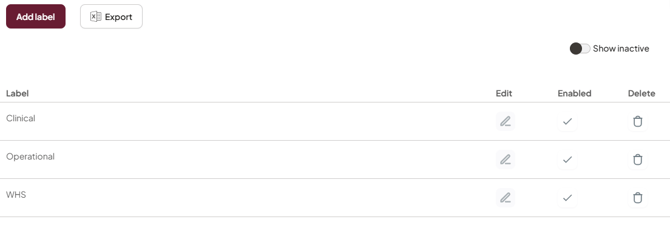
- For standard (single-level) menus, click Add label.
- Type your desired label name and click OK
- Repeat this process for any additional labels needed.
- Important: Click Save, then refresh your browser page to apply the changes to the live Incident details form
Note: Incident area menu - A maximum of 6 active labels can be added to the Incident area dropdown menu.
Managing Existing Labels
If you need to remove or recover menu options, use the Enabled column
| Action | Instructions |
| Disable a Label | Uncheck the tick in the Enabled column for that label and click Save. This hides the option from the dropdown menu without deleting its history. |
| View Hidden Labels | Toggle on the Show inactive switch at the top of the menu list to see previously disabled labels. |
| Re-enable a Label | While Show inactive is on, check the tick in the Enabled column and click Save. |
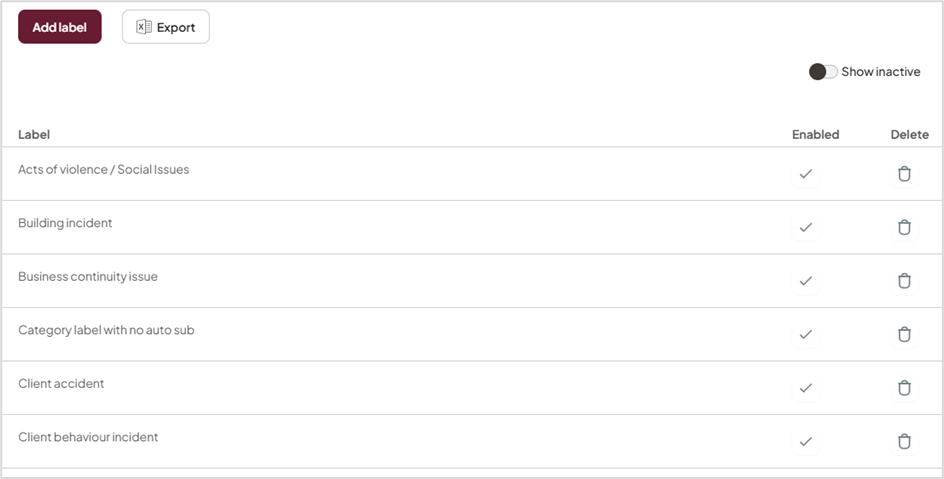
Single level menu
Configuring Multi-Level Menus (Sub-categories)
Use these steps to create a secondary menu (e.g., Incident Sub-category) that is conditionally linked to a primary menu (e.g., Incident Category).
1. Select the Sub-category Menu
- Navigate to the Register menus section.
- From the dropdown list, select Incident sub-category.
2. Link a Sub-category to a Parent Category
- Click Add label.
- Select the Parent Category: In the "Incident category" field, choose the primary category this sub-option should belong to.
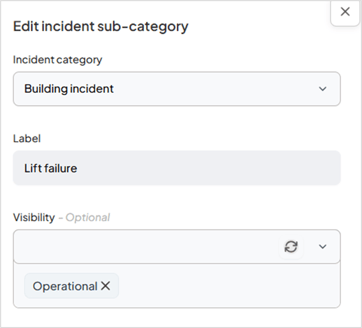
- Enter the Label: Type the name of the sub-category you want to add.
- Set Visibility: Under the Visibility section, select the specific incident area(s) where this category should be active.
Tip: You can select multiple areas if this sub-category applies across different departments or regions - Click OK.
3. Finalise and Verify
- Repeat: Continue adding labels for all necessary sub-categories.
- Save Changes: Click Save at the bottom of the screen.
- Refresh: Refresh your browser page to sync the changes.
Once saved, the List View will update to display the relationship between the main category and its linked sub-categories, making it easy to audit your menu structure at a glance.
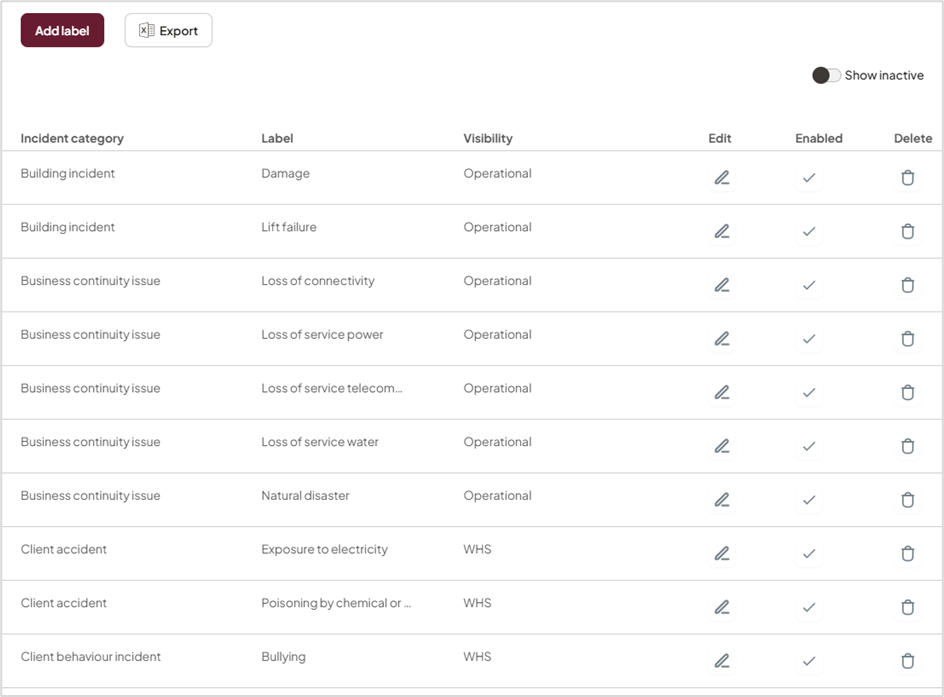
Multi-level menu