
This article covers the following:
- About the Accreditation register settings
- About the Accreditation register menus
- Configuring Accreditation Register Dropdown Menus
Permissions: Access to these settings requires the Admin permission 'Edit system settings'. Learn more about Administration permissions.
About the Accreditation register settings
The Accreditation register settings provides the ability to activate various features that enhance the functionality of the Accreditation register. These features are detailed in the table below.
Important note: When these settings are set, they are activated immediately. Please carefully consider the potential impact on your organisation before enabling them.
| Setting type | Description |
| Default standard | For organisations that manage multiple standards, use this setting to define the default standard. When users open the Accreditation register, it will display this standard by default. Users can then use the register filter to select and view other standards as required. |
| Standard settings |
For organisations with the Multi-site or Multi-program add-on activated, use this setting to link your sites or programs to the selected standard.
For more information on these features, click on the article links below |
About the Accreditation register menus
The following menus appear in the Accreditation details form. For some of these menus, Logiqc has added example content based on your industry. Others have been left blank as they are specific to your organisation. All these menus can be modified by your organisation.
| Menu label | Description |
| Assessment | This menu allows you to rate your own performance against industry standards. It serves as a tool for assessing your level of compliance and helps you to identify areas of compliance and potential areas for improvement. |
| Business system | When adding a task related to improving your compliance with standards, this menu allows you to categorise the action based on the specific business domain it pertains to. For example, if you have identified a deficiency in your staff training program, you would select ‘Training’ as the related business system. This provides another method of organising data, making it easier to interpret. Ultimately, it helps you gain insight into which business systems require the most improvements. |
| Program |
This menu enables a separate evidence report for each program. This is used where programs are assessed or audited separately for the purpose of accreditation. This menu only appears if the Multi-program addon has been activated. |
| Site |
This menu enables a separate evidence report for each site. This is used where sites, e.g. separate clinics, are assessed or audited separately for the purpose of accreditation. This menu only appears if the Multi-site addon has been activated. |
Configuring Accreditation Register Dropdown Menus
Follow these steps to add, edit, or disable options within your Accreditation register menus.
1. Access Administrative Settings
- Enter Admin Mode: Click your account profile icon and select Admin mode.
- Navigate to Register Settings: From the Administrator menu, go to System settings.
- Filter by register setting: In the Settings type dropdown, select Register settings - Accreditation .
2. Edit Your Menu Labels
- Under Register menus, select the specific menu you wish to edit.
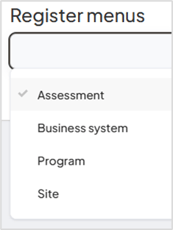
- For standard (single-level) menus, click Add label.
- Type your desired label name and click OK
- Repeat this process for any additional labels needed.
- Important: Click Save, then refresh your browser page to apply the changes to the live Accreditation details form
Managing Existing Labels
If you need to remove or recover menu options, use the Enabled column
| Action | Instructions |
| Disable a Label | Uncheck the tick in the Enabled column for that label and click Save. This hides the option from the dropdown menu without deleting its history. |
| View Hidden Labels | Toggle on the Show inactive switch at the top of the menu list to see previously disabled labels. |
| Re-enable a Label | While Show inactive is on, check the tick in the Enabled column and click Save. |
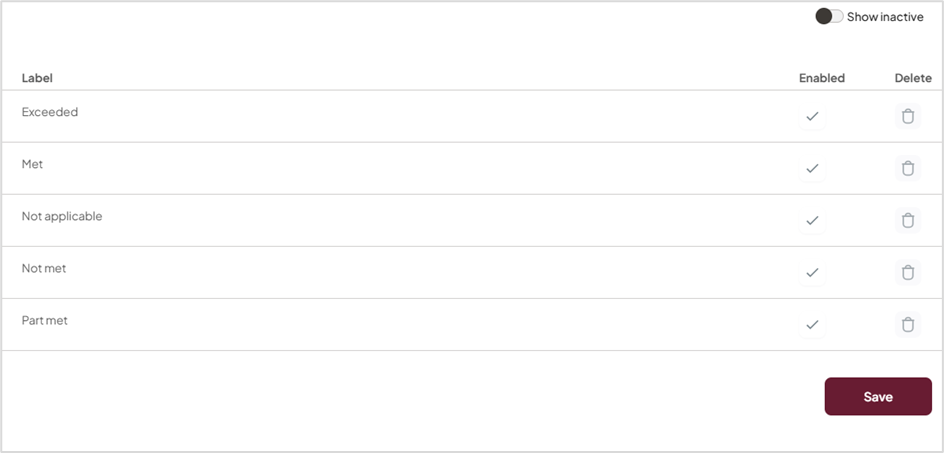
Single level menu