
In this article:
Learn how to set a default Accreditation standard in Logiqc, so that when more than one standard is activated, a single standard displays automatically for all users.
This is an administrator setting, applied once for the whole platform.
Set a default when your organisation adheres to more than one standard and most users work primarily with one of them. The default displays automatically when the register is opened, saving users from selecting it each time.
Users can still switch to another standard from the menu at the top of the register whenever they need to.
Q: Who can set the default standard?
A: An administrator with permission to edit system settings.
Q: What happens if a user selects a different standard?
A: That choice stays active only while they are logged in. The next time they log in, the register displays the default standard again.
Q: Does setting a default affect the data?
A: No. It only changes which standard is shown first; all activated standards remain available from the menu.
Before you start
Check the following:
- More than one standard is activated in your platform.
- You have admin permissions to edit system settings.
- You know which standard most users should see first when they open the Accreditation register.
Step 1: Open the register settings
Navigation path
Switch to Admin mode from your user account menu, then open System settings.
Switch to Admin mode from your user account menu, select System settings under the Administration menu, then go to Settings type and choose Register settings - Accreditation.
Step 2: Choose the default standard
Select the default standard you want to apply for your organisation. The change is applied automatically across the platform, and the register now displays the selected standard by default for all users.
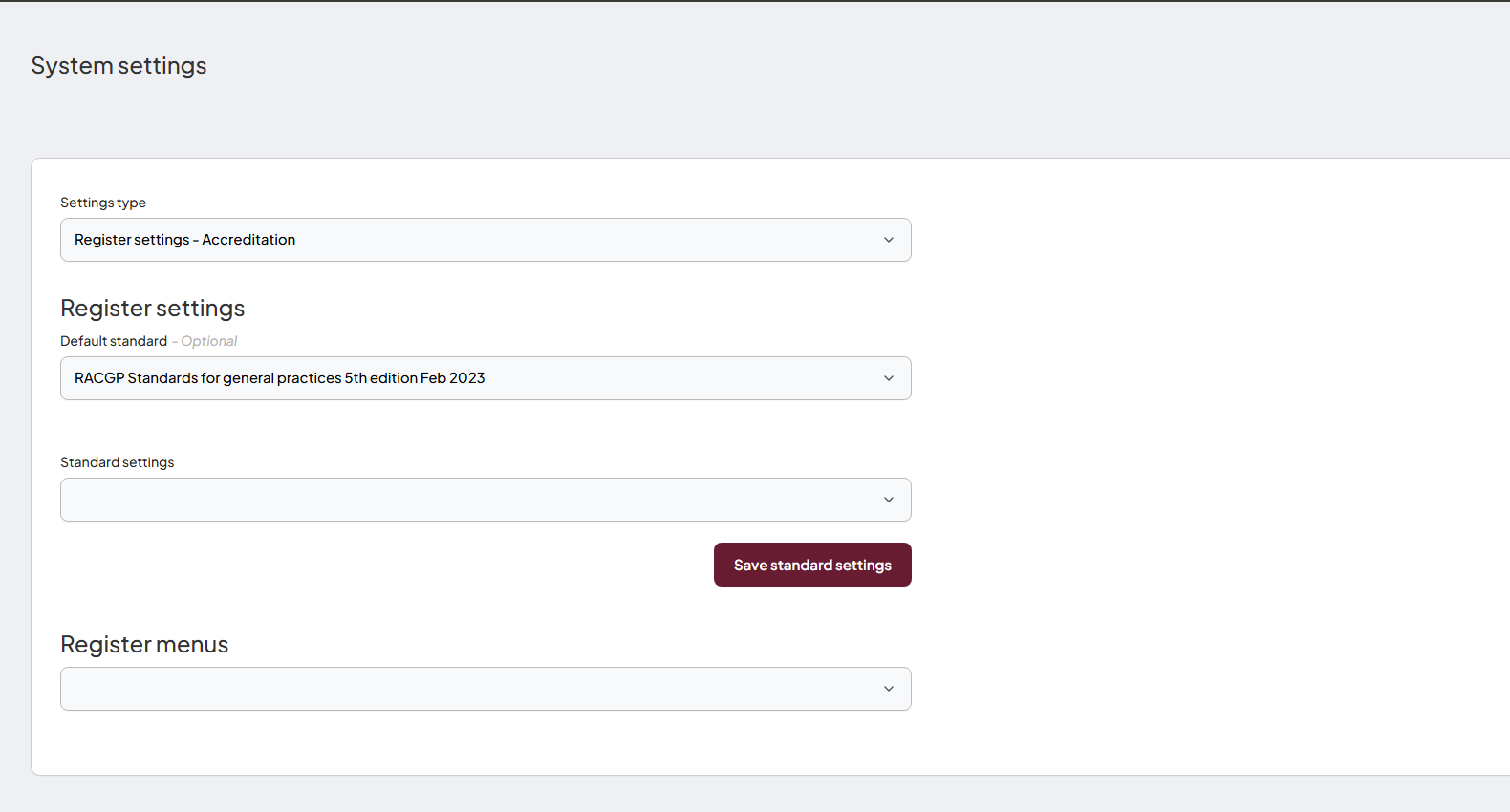
Set the default standard in the Register settings.
Troubleshooting
If the default standard is not behaving as expected:
The standard I need is not listed
- Check that the standard has been activated in your platform.
- If the standard is still in Draft, publish it before setting it as the default.
- Check whether the standard has been archived.
Users still see a different standard
- Ask the user to log out and back in.
- Check whether they manually selected another standard during the same session.
- Return to Register settings - Accreditation and confirm the default selection was saved.
What happens next
The setting is saved for the platform
The selected standard becomes the default standard for all users.
The register opens on that standard
When users open the Accreditation register, Logiqc displays the default standard first.
Users can still switch standards
Activated standards remain available from the standard menu at the top of the register.