
This article covers the following:
- About the Improvements register settings
- About the Improvements register menus
- Configuring Improvement Register Dropdown Menus
Permissions: Access to these settings requires the Admin permission 'Edit system settings'. Learn more about Administration permissions.
About the Improvements register settings
The Improvements register settings provides the ability to activate various features that enhance the functionality of the Improvements register. These features are detailed in the table below.
Important note: When these features are selected, they are activated immediately. Please carefully consider the potential impact on your organisation before enabling them.
| Setting type | Description |
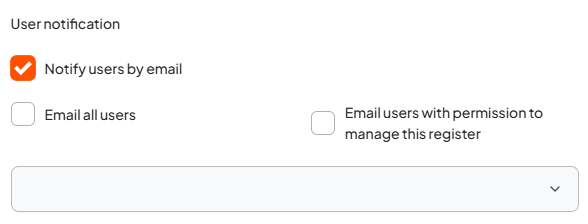
| Enable controls to 'bulk send' notifications to all users and/or to all approval licence holders |
This setting allows you to notify a group of users in bulk. This setting reveals 2 options:
Note: This setting does not change or extend a user’s existing viewing permissions. It only sends them a notification about the Improvement. If a user is notified but does not have permission to view the Improvement, they will not be able to access its details. |
| Users to be notified when draft items are created via the API |
This feature only displays if the Improvements register integration API has been activated. The Improvement register integration API supports an integration with your website or other platforms enabling improvements and non-conformances to be reported through another platform. When an improvement or non-conformance is reported through another platform, this is added as a draft item in the Logiqc Improvements register and staff who are selected in this field are notified. Learn more. |
| Email address |
If you have a team email for receiving improvements, you can add the team email here. This is an optional field. When improvements are reported through another platform, a notification will be sent to this email as well as to the email accounts of those who have been selected in the field ‘Users/positions’. |
About the Improvements register menus
The following menus appear in the Improvements details form. For some of these menus, Logiqc has added example content based on your industry. Others have been left blank as they are specific to your organisation. All these menus can be modified by your organisation.
| Menu label | Description |
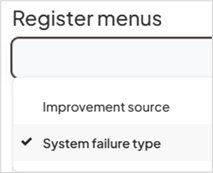
| Improvement Source | When providing suggestions or reporting a non-conformance (NC) on the Improvement register, this menu allows you to categorise the improvement/NC based on its origin, such as stemming from an audit or a client incident. The improvement source should encompass the various sources from which an improvement/NC could arise.
You have the ability to filter and analyse the ‘improvements source’ in both the register and analytics. |
| System failure type | When submitting a non-conformance report on the Improvement register, this menu provides an overview of the various systems within the organisation that may encounter failures leading to non-conformances. For instance, IT systems and Financial systems are common examples of systems that may fail. This list is an essential part of the causal analysis process for non-conformances.
By utilising the ‘system failure type’ filter on the register, you can analyse and categorise non-conformances. |
Configuring Improvement Register Dropdown Menus
Follow these steps to add, edit, or disable options within your Improvement register menus.
1. Access Administrative Settings
- Enter Admin Mode: Click your account profile icon and select Admin mode.
- Navigate to Register Settings: From the Administrator menu, go to System settings.
- Filter by register setting: In the Settings type dropdown, select Register settings - Improvement.
- Under Register menus, select the specific menu you wish to edit.
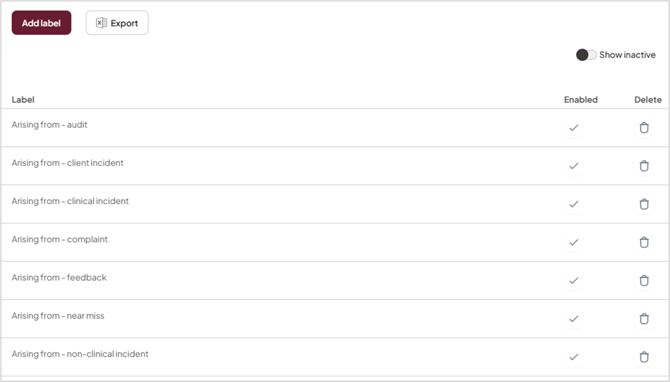
- For standard (single-level) menus, click Add label.
- Type your desired label name and click OK
- Repeat this process for any additional labels needed.
- Important: Click Save, then refresh your browser page to apply the changes to the live Improvement details form
Managing Existing Labels
If you need to remove or recover menu options, use the Enabled column
| Action | Instructions |
| Disable a Label | Uncheck the tick in the Enabled column for that label and click Save. This hides the option from the dropdown menu without deleting its history. |
| View Hidden Labels | Toggle on the Show inactive switch at the top of the menu list to see previously disabled labels. |
| Re-enable a Label | While Show inactive is on, check the tick in the Enabled column and click Save. |
Single level menu