
Learn how to schedule a licensing task to check a person's licence or credential at the right time. You can define what needs to be checked, set due dates and recurrence, assign the Action and Approval officers, and control who can access the task.
Scheduling licensing checks in Logiqc keeps them consistent, accountable and easy to track. Each check is automatically assigned when due, with the instructions and evidence kept together for every credential holder.
Use a once-off check for a single licensing requirement, or a recurring schedule for checks that need to be repeated. The same licensing details are carried forward to each occurrence.
A credential holder can be a Logiqc user or someone listed in the Contacts register.
Can a licensing check repeat?
Yes. Choose Recurrence in the Frequency field, then set how often the check repeats and when the schedule ends.
What happens if I select more than one credential holder?
Logiqc creates a separate licensing task for each selected person when you submit the page.
Before you start
Check the following:
- You have the Schedule licensing permission. Ask your system administrator to check your access if the scheduling controls are unavailable.
- You know whose licence or credential is being checked and what the check must cover.
- You have the check date, responsible users and any reference documents ready.
Step 1: Open the Licensing register
Navigation path
Open Management, select Licensing, then select Schedule licensing.
Step 2: Describe the licensing check
- Licensing type: select the licence or credential check. If the required type is not listed, select Free type it and enter the name.
- Credential holder: choose LOGIQC user or Contact, then select the person in Credential holder/s. Selecting several people creates a separate task for each person when you submit the page.
- Related agreement: optionally link the contract or agreement that requires this check.
- Reference documents: optionally select the documents the Action officer needs. These are available from the Action stage.
- Instruction type: if configured in your platform, select a type to use its pre-programmed instructions. See Adding task instructions.
- Instructions: explain what to check, how to record the result and what evidence to attach.
- Additional comments and Scope of licence/credential: use these optional fields when more context is needed.
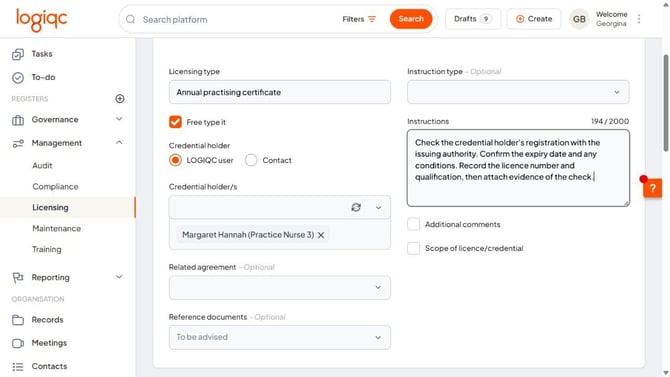
Use specific instructions so the Action officer knows what to check and what evidence to provide.
Example instructions: check the credential holder's registration with the issuing authority; confirm the expiry date and any conditions; record the licence number and qualification; then attach evidence of the check.
Step 3: Set the dates and recurrence
In Schedule, open the scheduler and set the following:
| Field | What to enter |
|---|---|
| Licence check date | The date the Action officer needs to complete the check. |
| Action days | How many days the Action officer has to complete the check. The start date is calculated before the Licence check date. |
| Approval days | How many days are allowed for approval after the Licence check date. |
Review the calculated Start date, Action due date and Approval due date before continuing.
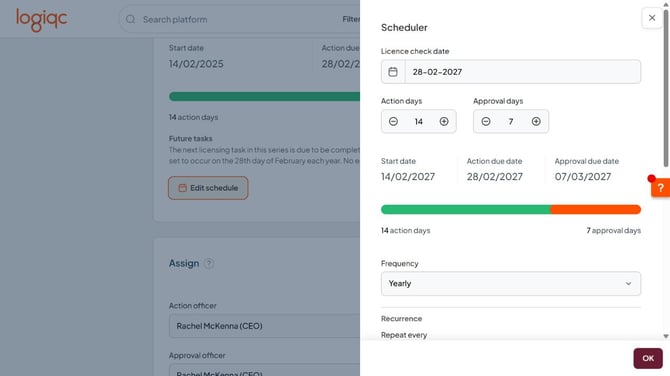
In this example, the check starts on 14 February, is due on 28 February and must be approved by 7 March.
Choose the Frequency. Use Once off for a single check. For a repeating check, set the Recurrence pattern and Repeat every value. For example, a yearly check can repeat every one year or every three years.
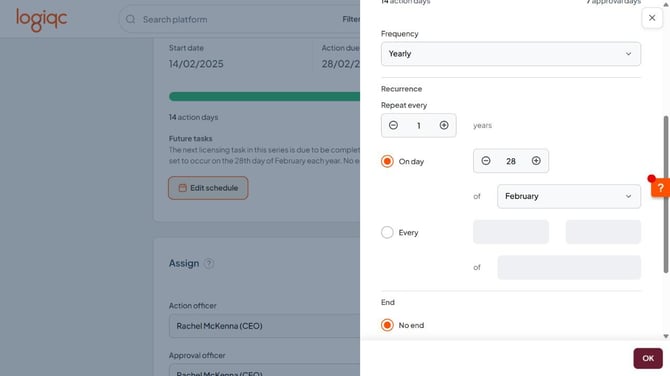
Set the repeat interval and the day on which the check is due.
| End option | Result |
|---|---|
| No end | Continue creating checks according to the schedule. |
| End after a number of times | Stop after the specified number of occurrences. |
| End after a date | Stop the recurring schedule at the specified date. |
| Halt schedule | Stop future repeating checks after the current one. |
Select OK to apply the schedule to the page. The licensing task is not created until you submit the page.
Step 4: Assign the responsible users
- Action officer: select the user who will carry out the check. A credential holder who is a Logiqc user may already be selected. If someone else will do the check, select Assign to a different action officer and choose that user.
- Approval officer: select the user responsible for reviewing and closing the check.
- Related business area: select the business area the check relates to.
- Related meeting: select the meeting responsible for oversight.
Where multiple Action officers can be selected, each receives a separate task that must be completed and closed. To keep one task with a shared contribution, select one Action officer and explain the other people's roles in the instructions.
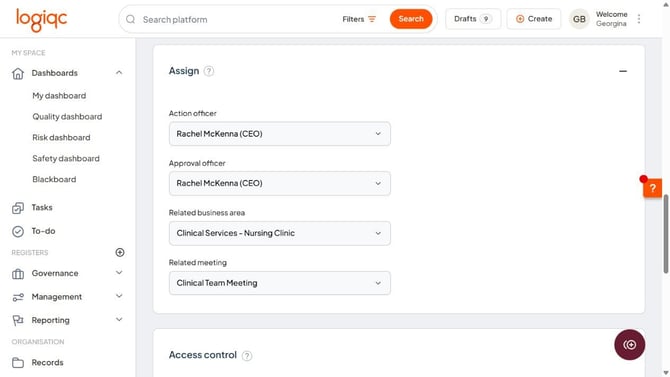
Assign the person doing the check separately from the person approving it.
Step 5: Set access permissions
In Access control, choose who can view the licensing item.
All users can access: make the item visible to all users.
Specify who can access: select the relevant Teams and any additional Individual users.
Who can view? shows the users who can access the item based on the settings, workflow assignments and relevant system-level permissions.
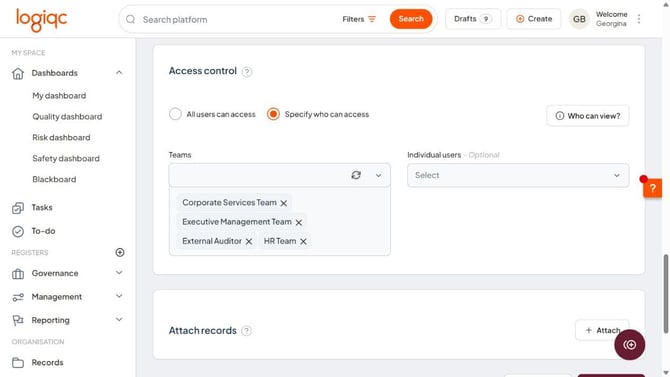
Limit access where the licensing item contains personal or confidential information.
Step 6: Attach supporting records if needed
Attach supporting records now if they are needed for the check. Evidence of the completed check can be added at the Action stage.
Use Attach records to add evidence such as a licence, registration confirmation or completed credential checklist.
- Select Attach.
- Enter a meaningful Record name, including the credential holder and relevant date where useful. Select a Record category if required.
- Review the record's access settings. Use All users can access or Specify who can access, then choose the relevant teams and individual users.
- Select Choose file and select the evidence from your computer. If links are enabled, switch from File to Link and enter the web or SharePoint URL.
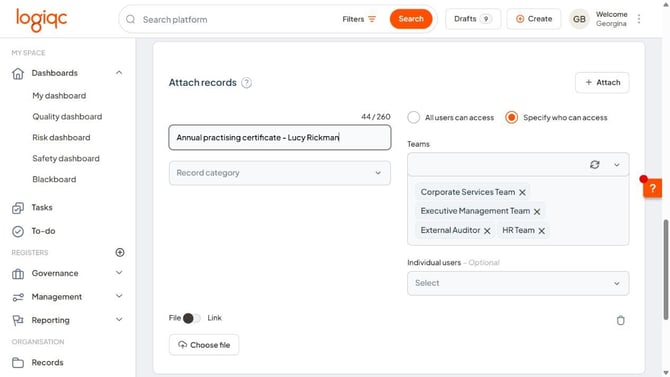
Give the evidence a meaningful name and review who can access it before adding the file or link.
The evidence remains with the licensing check. Records attached to the check are also available in the Records register when the check is completed and closed.
Step 7: Submit or save a draft
Select Submit to save the licensing details and create the scheduled check.
If you are not ready to schedule the check and the option is available, select Save as draft. Return to the Draft tab in the Licensing register to finish it later.
Select Create a related item before submitting if you also need to create a separate, linked item on another register.
Other sections
What happens next
When you select Submit, the check follows the licensing workflow. A saved draft is not scheduled until you submit it.
The check is scheduled
The check appears in Licensing schedule with the dates and recurrence you selected.
The action task starts
On the start date, the Action officer receives the task and it appears in In progress. See Complete a licensing task.
The result is reviewed
After the Action officer submits the completed check, the Approval officer reviews the result and evidence.