In this article:
Learn how to close an audit in Logiqc once the audit has been completed and assigned to you for final review.
Use this article to check what has been done to date, decide whether the audit can be closed, and complete the close stage of the workflow.
Tip: For a detailed step-by-step guide, see the Academy tutorial below.
Closing an audit completes the final stage of the workflow.
At this stage, you check what has been done to date, including the Action history, Identified improvements, and any attached records.
If no further action is required, choose Close audit. If more work is needed, choose Assign another task.
Q: Who closes the audit?
A: The Approval officer is responsible for closing the audit.
Q: What should I check before closing the audit?
A: Check the audit summary, Items audited, Recommendations, Action history, Identified issues and improvements, and any attached records before closing the audit.
Q: What happens after the audit is closed?
A: The audit is finalised in the workflow and remains available in the Audit register for future reference and reporting.
Before you start
Check the following:
- You have Logiqc Auditor.
- You have an Approval licence and the required permission to close audits.
- The audit has been completed and is ready for review and close.
Step 1: Check the audit summary
Click the audit name to open the Audit summary page.
Start with the audit summary so you can confirm the overall result before moving through the other tabs.
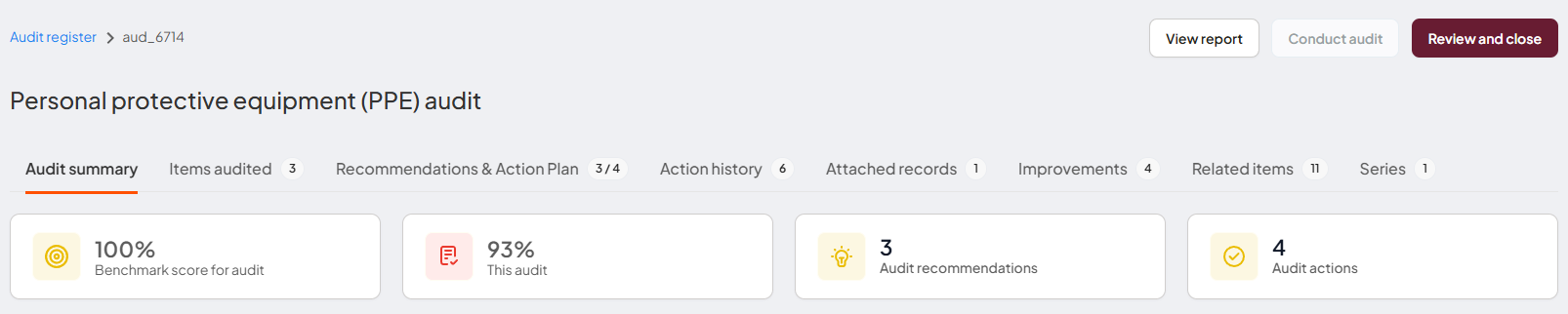
Use the audit summary to confirm you are working on the correct audit and to check the overall result.
Step 2: Check the information tabs
Go through the supporting tabs so you can understand the completed entries, follow-up recommendations, workflow activity, identified improvements, and attached records before closing the audit.
Information tabs
Use the arrows to move through the tabs, or click an image to zoom in.
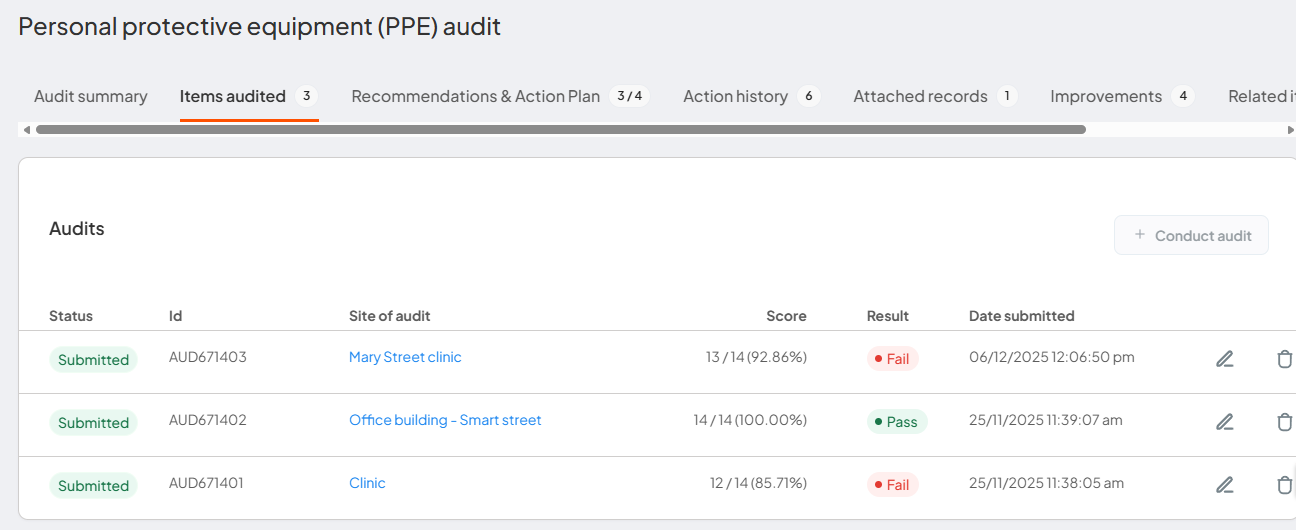
Items audited
Use the Items audited tab to check the completed audit entries and their results.
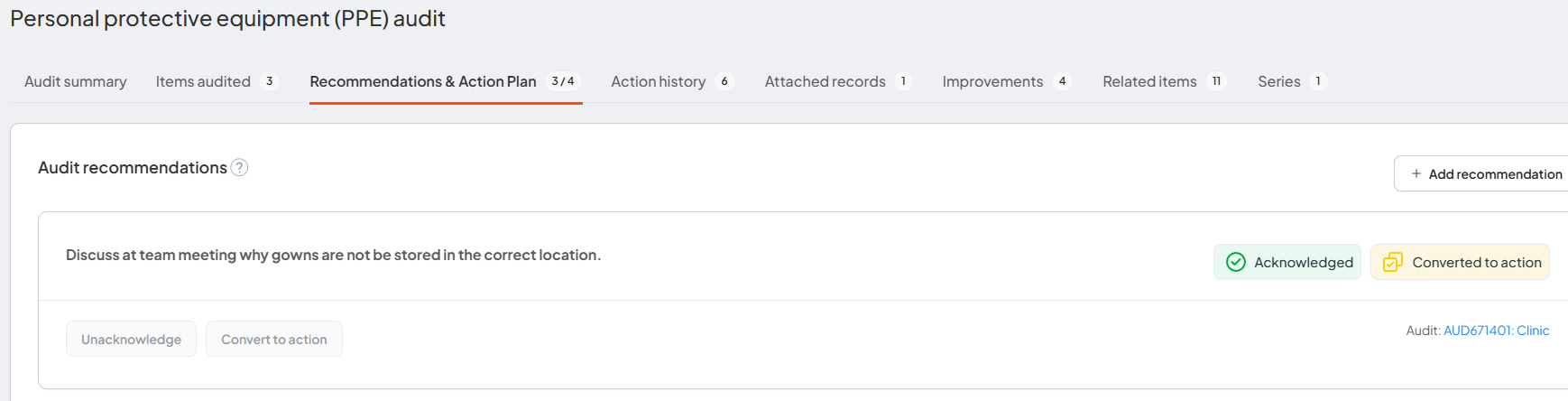
Recommendations
Check recommendations and see whether follow-up has been acknowledged or converted to an action.
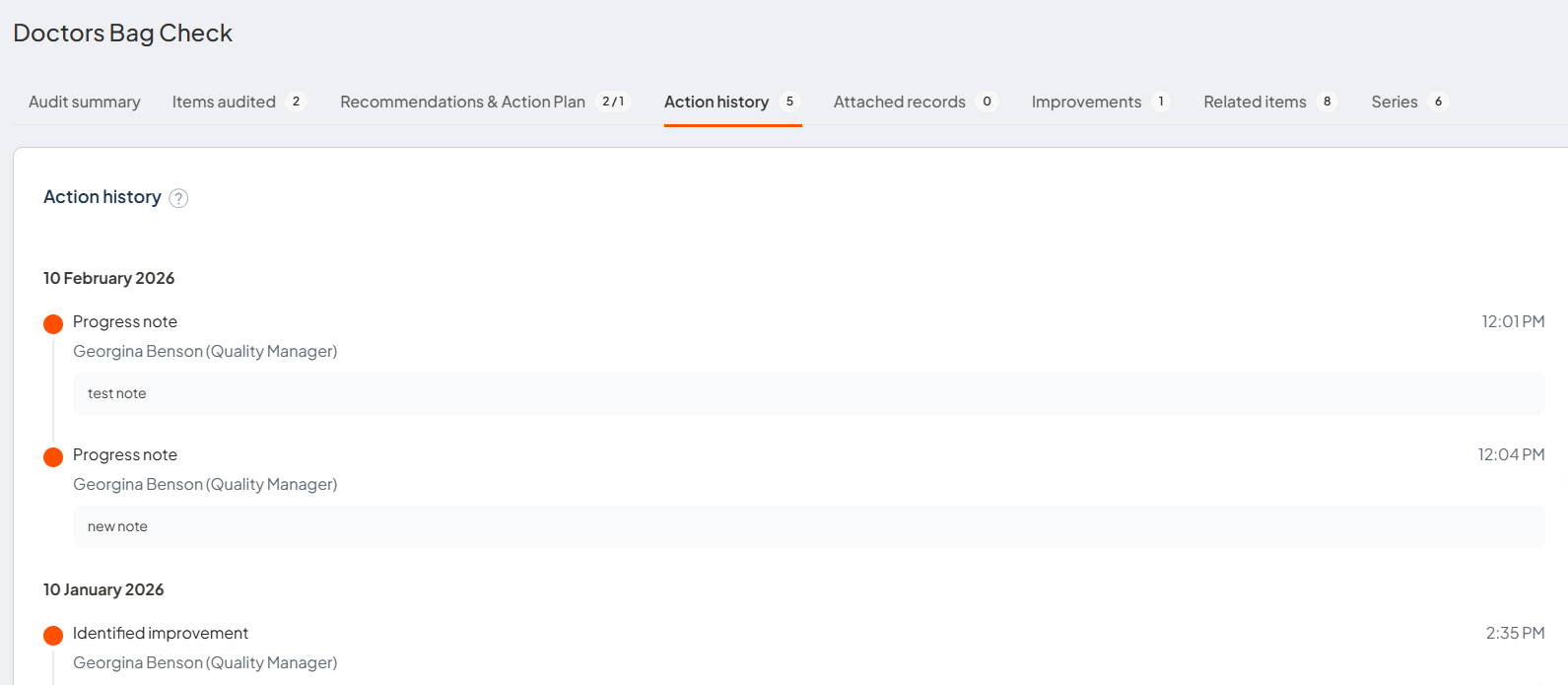
Action history
A record of workflow activity at each stage, including decisions made and comments provided by users.
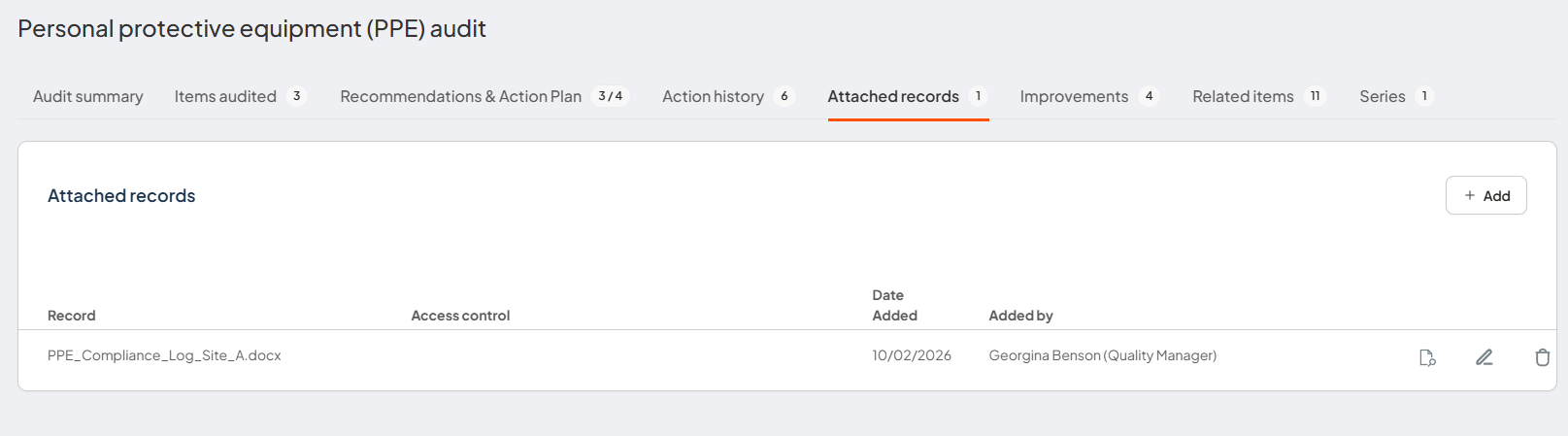
Attached records
Check files linked to the audit such as the audit report, correspondence, emails, or images.
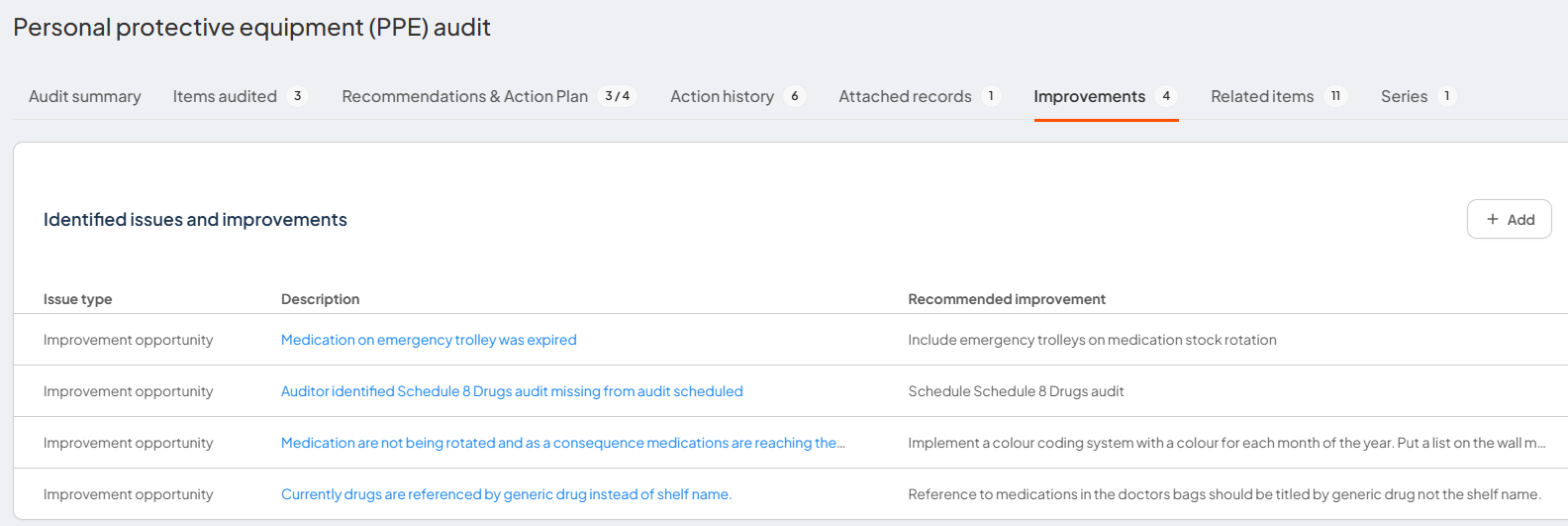
Identified issues and improvements
Recommended improvements arising from the audit.
Step 3: Review and close the audit
Use the audit summary page to confirm you are working on the correct audit, then click Review and close.
Open the audit item, then click Review and close to begin the final review stage.
Logiqc opens the Recommendations and Action Plan tab so you can review recommendations before deciding whether to close the audit or assign more work.
Tip: If a recommendation has already been acknowledged, unacknowledge it before converting it to an action. After it has been unacknowledged, select Convert to action.
The Task options panel displays three options for the close stage of the workflow.
Review audit findings
Opens the Recommendations tab to review findings and follow-up actions.
Review audit findings and any follow-up actions before deciding how to proceed.
Assign another task
Use if further action is needed before the audit can be closed.
For example, if the required steps to manage an issue have not been taken or relevant records have not been attached.
Close audit
Use if no further action is required. Add optional comments before closing.
You can tick Additional comments to add comments such as the grounds for closing the audit or any final observations.
If you select Assign another task, add enough detail for the Action officer to understand what needs to be completed before the audit can be closed.
Troubleshooting
If something is not working as expected:
"I can't close the audit"
- Check that the audit has reached the review and close stage
- Check that you are the assigned Approval officer
- Refresh the task and reopen the audit item
"I need more context before closing the audit"
- Use Review audit findings to open the Recommendations tab
- Check the Action history tab to see workflow movement and comments recorded at each stage
- Check Identified issues and improvements to confirm whether further action is required before selecting Close audit
What happens next
After the audit is closed, the audit workflow is complete and the final record remains available for future reference.
The audit is finalised
The audit record is closed and remains available in the Audit register.
The audit history is preserved
Audit results, recommendations, notes, improvements, and attached records remain available for future reference.
Results support reporting
The closed audit contributes to your audit records, reporting, and review activity.
The workflow is complete
The audit has been reviewed and formally closed.