
This article covers the following:
Permissions: Access to these settings requires the Admin permission 'Edit system settings'. Learn more about Administration permissions.
About the Asset register menus
The following menus appear in the Asset details form. For some of these menus, Logiqc has added example content based on your industry. Others have been left blank as they are specific to your organisation. All these menus can be modified by your organisation.
| Menu label | Description |
| Asset Type | When you add an asset to the Assets register, this menu provides you with the opportunity to classify each asset based on its type. This list represents a broader category of your assets and can encompass various types such as ICT, medical equipment, vehicles, and properties. |
| Asset Category | Asset type and Asset category are interconnected to form a primary category and sub-categories. The Asset type serves as the main classification for the assets, while the Asset category acts as a further subdivision. When you add an asset to the Assets register, your menu will automatically provide you with the relevant sub-categories (Asset categories) based on the Asset type you have selected. The Asset category allows for a more detailed classification of the asset, enabling you to categorise it in more detail. |
| Asset Criticality | Asset criticality is an essential factor in categorising assets according to their significance in service delivery or business operations. This classification aids in promptly addressing critical assets when they require replacement, repair, or servicing. |
| Depreciation method | This menu identifies the accounting method used for depreciating the assets that have been classified as depreciating assets, such as diminishing value and prime cost. |
| Location | When adding an asset to the Assets register, you can assign the asset to a specific location. Tagging assets by location allows easy filtering and analysis of assets according to their designated location. |
| Ownership | When you add an asset to the Assets register, this menu allows you to categorise each asset based on whether it is owned or leased. You can add or modify these ownership types."
By utilising the 'asset ownership' filter in the register and analytics, you can easily sort and analyse your assets based on ownership. |
| Region | When you add an asset to the Assets register, this menu allows you to categorise each asset by geographic region. |
| Workflow stage names |
Note: This menu is presented in both the Assets and the Contracts registers. The Contract register's workflow can be configured to incorporate additional stages for each contract. During the 'manage stage' of the workflow, the contract's progression can be expanded to include a series of sequential stages, such as budget review, program review, and contract execution. This allows flexibility in the way each contract is managed. Please note that the suggested stage names provided are merely examples and should be revised to align with your organisation's specific needs. Learn more about setting up your workflow stage names to manage your asset management workflow. |
Configuring Asset Register Dropdown Menus
Follow these steps to add, edit, or disable options within your Asset register menus.
1. Access Administrative Settings
- Enter Admin Mode: Click your account profile icon and select Admin mode.
- Navigate to Register Settings: From the Administrator menu, go to System settings.
- Filter by register setting: In the Settings type dropdown, select Register settings - Asset.
2. Edit Your Menu Labels
- Under Register menus, select the specific menu you wish to edit.
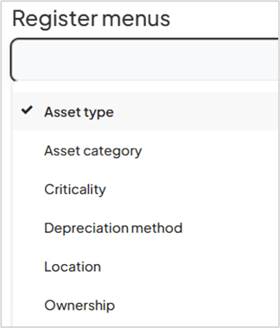
- For standard (single-level) menus, click Add label.
- Type your desired label name and click OK
- Repeat this process for any additional labels needed.
- Important: Click Save, then refresh your browser page to apply the changes to the live Asset details form
Managing Existing Labels
If you need to remove or recover menu options, use the Enabled column
| Action | Instructions |
| Disable a Label | Uncheck the tick in the Enabled column for that label and click Save. This hides the option from the dropdown menu without deleting its history. |
| View Hidden Labels | Toggle on the Show inactive switch at the top of the menu list to see previously disabled labels. |
| Re-enable a Label | While Show inactive is on, check the tick in the Enabled column and click Save. |
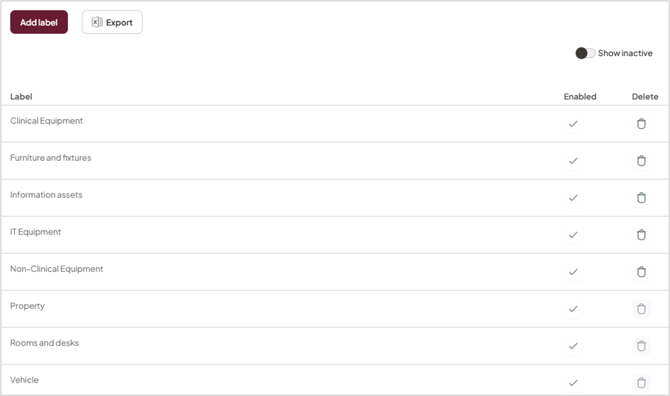
Single level menu
Configuring Multi-Level Menus
Use these steps to create a secondary menu (Asset Category) that is conditionally linked to a primary menu (Asset Type).
1. Select the secondary level menu
- Navigate to the Register menus section.
- From the dropdown list, select Asset Category.
2. Link a Sub-category to a Parent Category
- Click Add label.
- Select the Parent: In the "Asset Type" field, choose the primary asset type this sub-option should belong to.
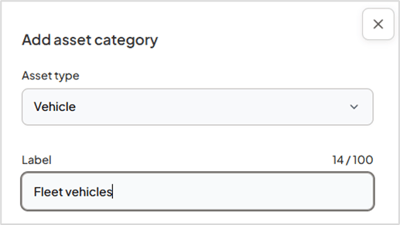
- Enter the Label: Type the name of the Asset category you want to add.
- Click OK.
3. Finalise and Verify
- Repeat: Continue adding labels for all necessary Asset types.
- Save Changes: Click Save at the bottom of the screen.
- Refresh: Refresh your browser page to sync the changes.
Once saved, the List View will update to display the relationship between the main category and its linked sub-categories, making it easy to audit your menu structure at a glance.
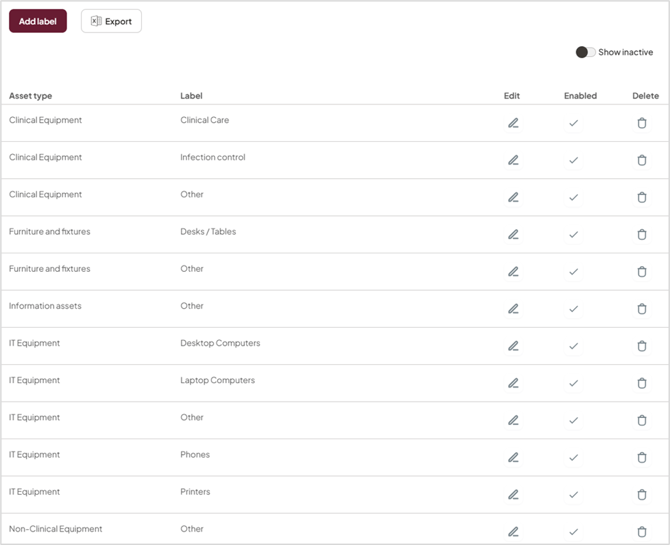
Multi-level menu