
Configure risk settings
In this article:
Learn how to configure risk settings in Logiqc, including matrix labels and assessment criteria.
The matrix helps your organisation rate risk by comparing likelihood and consequence, then applying consistent language to the resulting risk level. In Admin mode, you can edit the labels and assessment criteria for the matrix configured for your platform.
Risk assessment is based on the relative likelihood of something happening and the consequence if it does happen.
Logiqc uses the matrix to support uncontrolled, controlled, and target risk ratings on risk detail pages.
Your platform can use one of the standard matrix options or a paid/custom option supplied by Logiqc.
Q: Can matrix option numbers be changed?
A: No. Matrix option numbering is fixed.
Q: Can I change the wording used in the matrix?
A: Yes. Use Risk settings in Admin mode to configure matrix cell label language, likelihood and consequence labels, and assessment criteria.
Q: Can we use our own matrix?
A: Yes. Contact Logiqc to discuss a custom matrix and confirm the fee. See Matrix options and ordering below.
Before you start
Check the following:
- You are in Admin mode.
- You have permission to update Risk settings.
- You know whether your organisation is using a standard, paid, or custom matrix option.
Step 1: Open Risk settings
Go to Risk settings in Admin mode.
Navigation path
In Admin mode, select Risk settings from the Administration panel.
From here, you can configure the labels and assessment criteria users see during risk assessment.
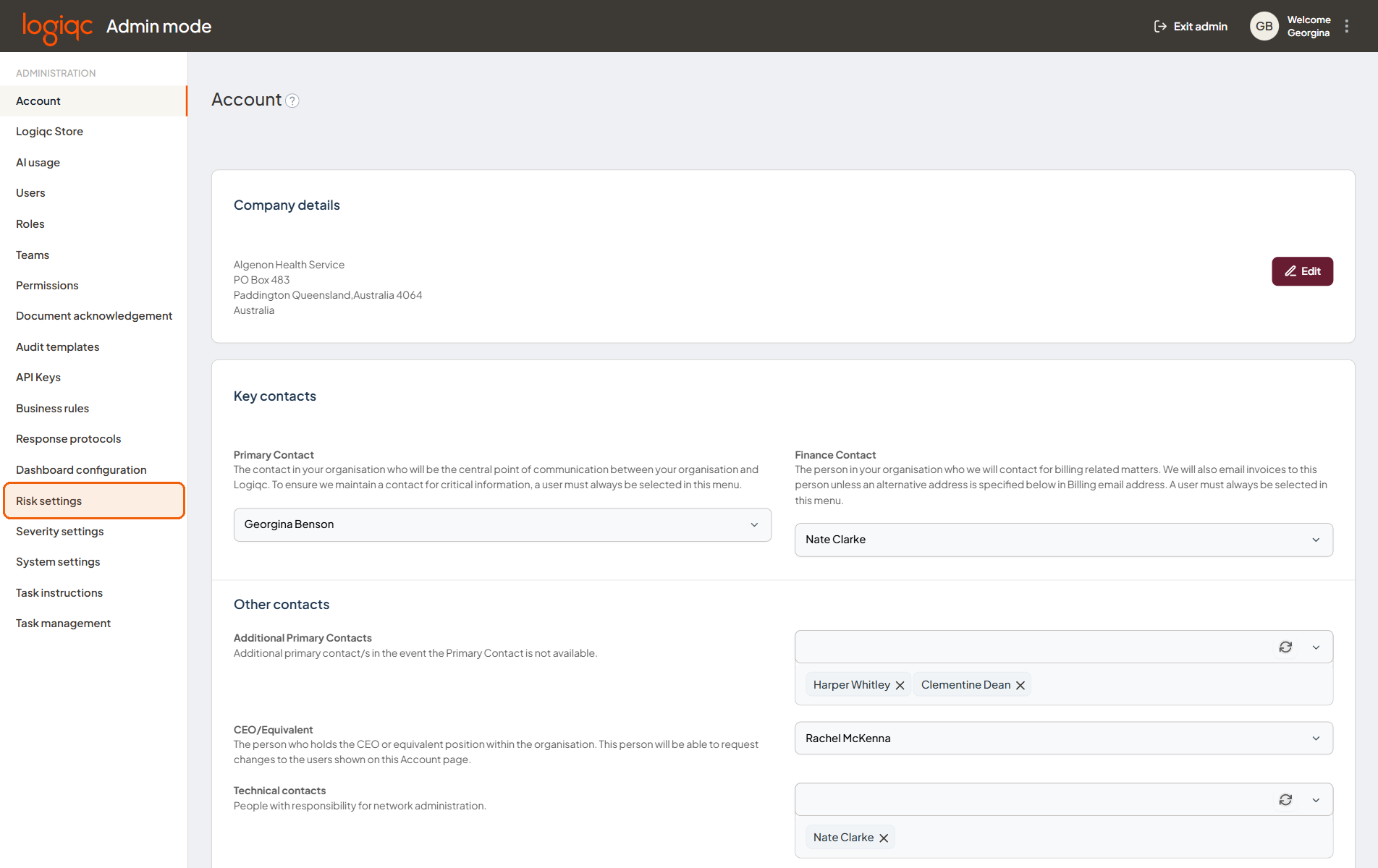
The Risk settings page shows the configurable matrix labels and assessment criteria.
Step 2: Configure labels and criteria
Use Matrix cell label language to configure the labels shown for Risk value 1, Risk value 2, Risk value 3, and Risk value 4.
Use Likelihood and Consequence label language to configure the row and column language used by the matrix.
Use Risk assessment criteria to define the criterion and assessment result text for Extreme, High, Medium, and Low.
If required, choose a document to display as a link in the risk criteria screen.
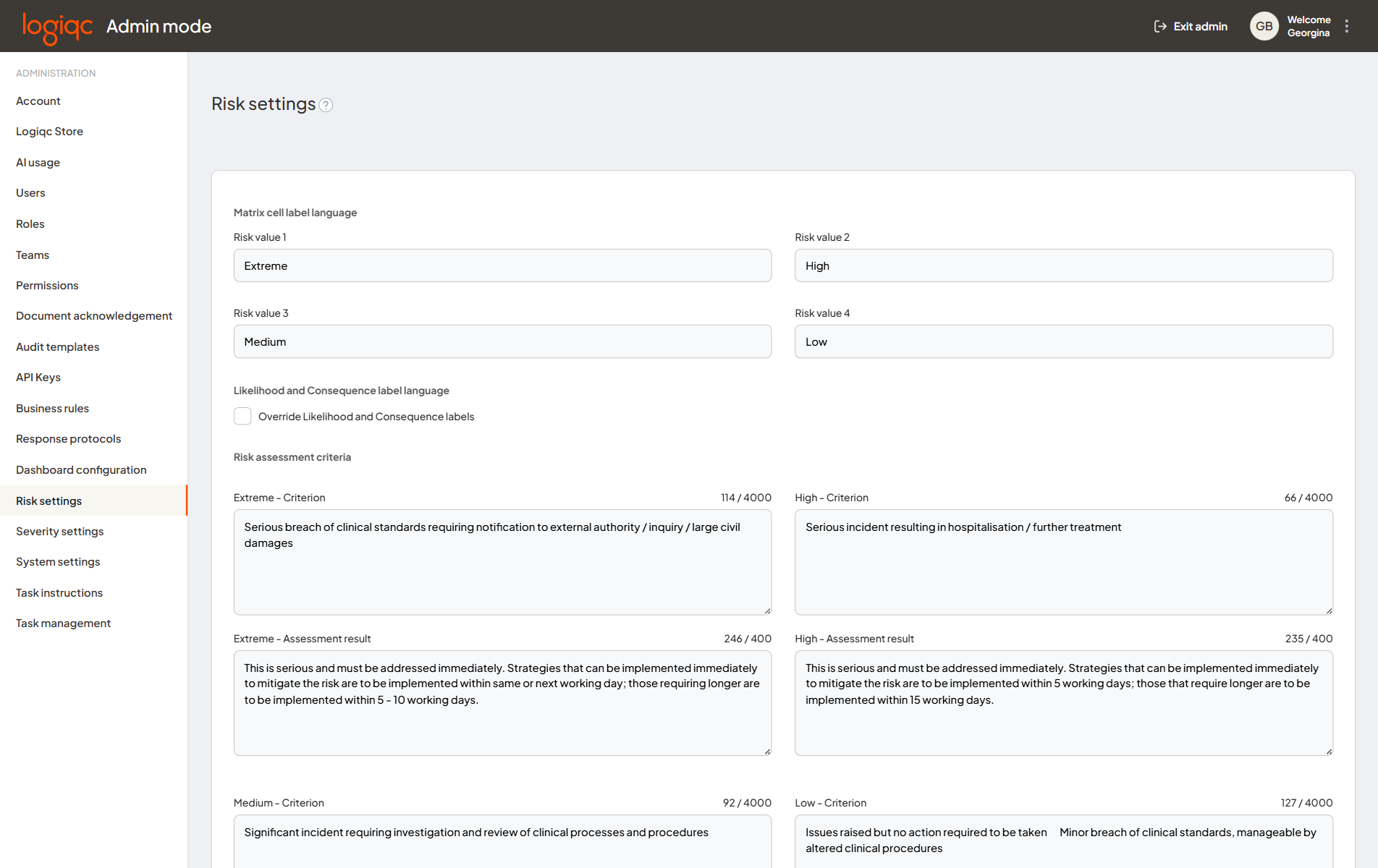
Configure the label language and criteria text shown to users.
Step 3: Save settings
Review the label language and criteria, then select Save.
The saved language is used when users assess risks with the configured matrix.
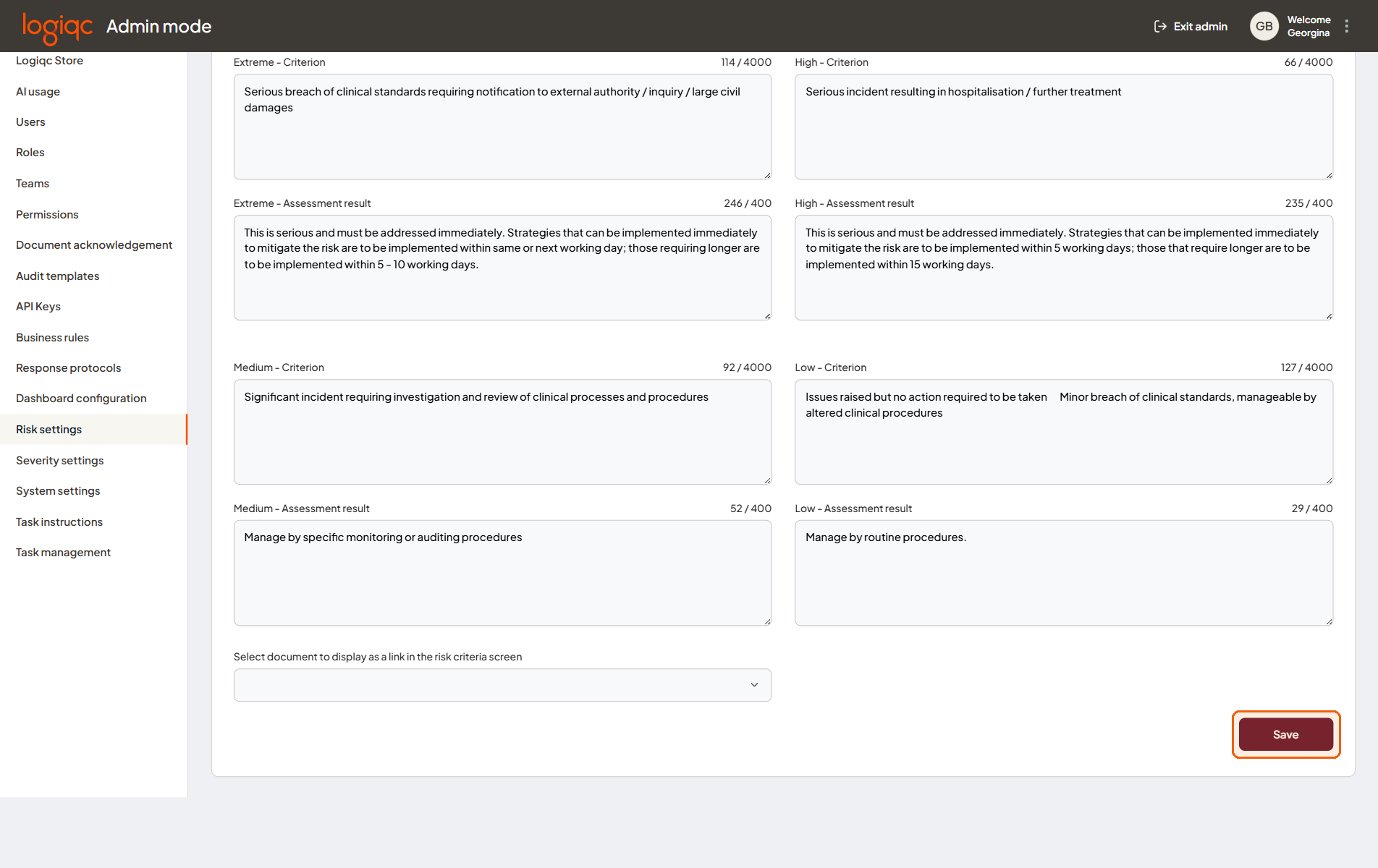
Select Save to apply the label language and criteria.
How these settings guide risk assessment
Populating the criterion and assessment result text gives users practical guidance while they assess a risk. The criterion describes what a rating means, and the assessment result explains how the risk should be managed.
Risk criteria: assess risks consistently
Selecting Risk criteria in the Risk assessment section opens a panel containing the criteria entered in Risk settings. Users can refer to these descriptions when deciding how to rate a risk.
For example, the High criteria shown below include serious injury or harm to a consumer requiring lengthy hospitalisation. This gives users a shared description to compare with the risk they are assessing.
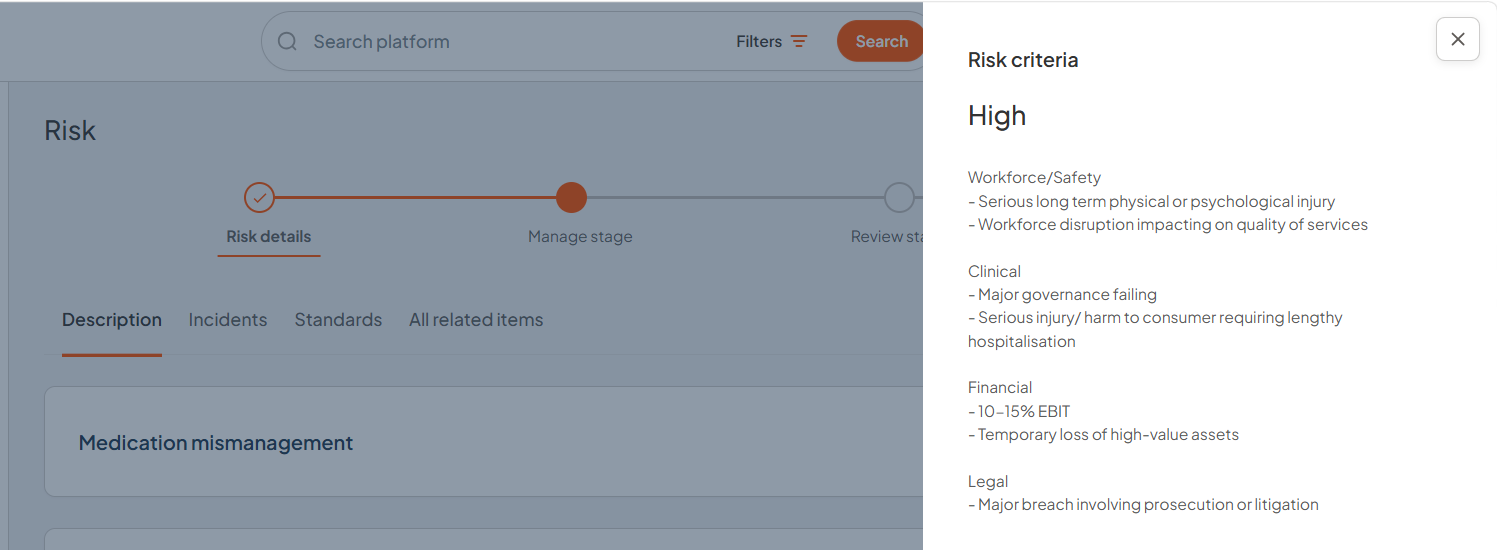
The example High criterion defines consequences across Workforce/Safety, Clinical, Financial and Legal.
Selected rating: understand the response
Selecting a rating in the matrix displays guidance about how the risk should be managed beside the matrix. This uses the assessment result text entered in Risk settings.
In the example below, the High response calls for immediate attention and sets timeframes of 5 working days for strategies that can be implemented immediately, or 15 working days for strategies that take longer. Use response wording and timeframes that reflect your organisation's risk framework.
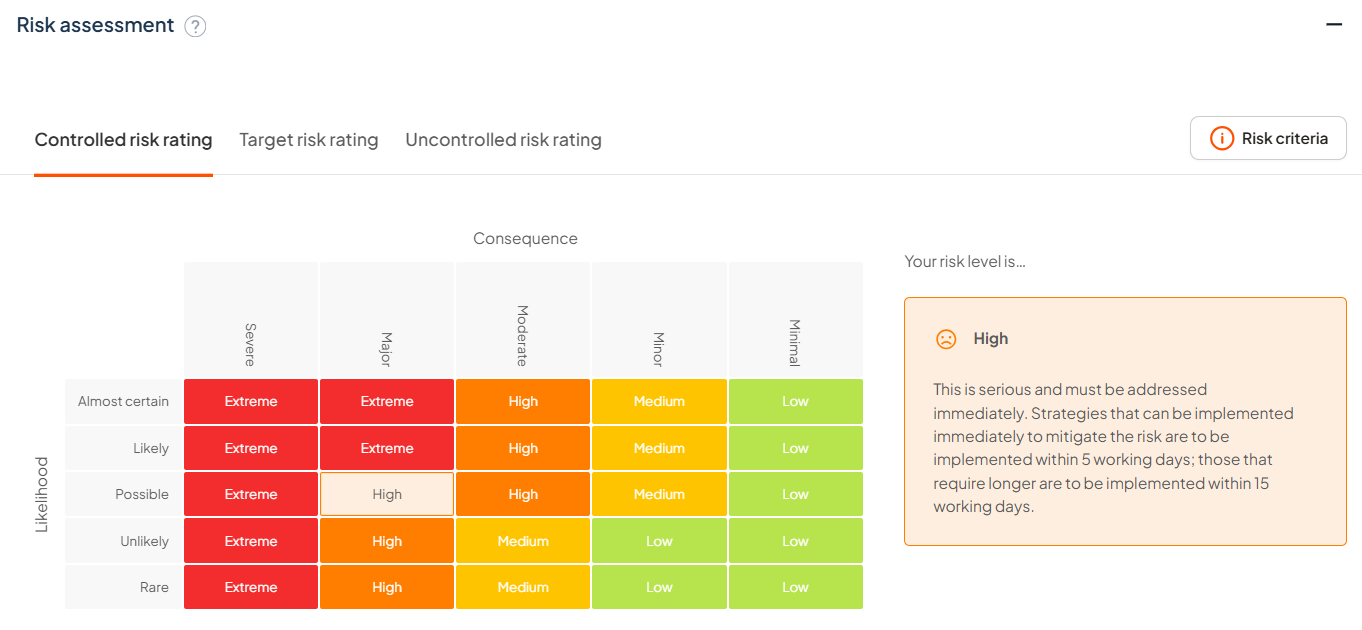
The High response in this example includes immediate attention and action timeframes.
Other sections: optional matrix reference
Use this catalogue when discussing matrix requirements with Logiqc. These examples are for reference; Logiqc supplies the matrix configured for your platform. The settings above let you edit its labels and assessment criteria.
Your matrix is configured with the default wording shown in its example unless you specify different wording. You can then edit the row, column and coloured cell labels in Risk settings. See the risk settings guide for more detail.
Open a section below to view the available examples. Select a thumbnail or View example to enlarge the matrix.
The five free options are 1, 2, 3, 4 and 14.
| Matrix option | Example |
|---|---|
| Option 1 | 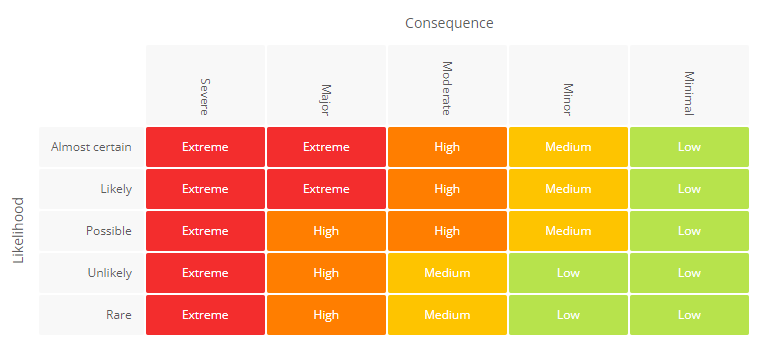 View example View example |
| Option 2 | 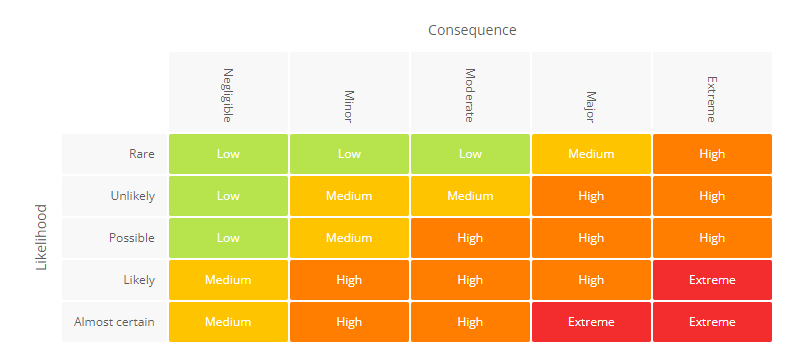 View example View example |
| Option 3 | 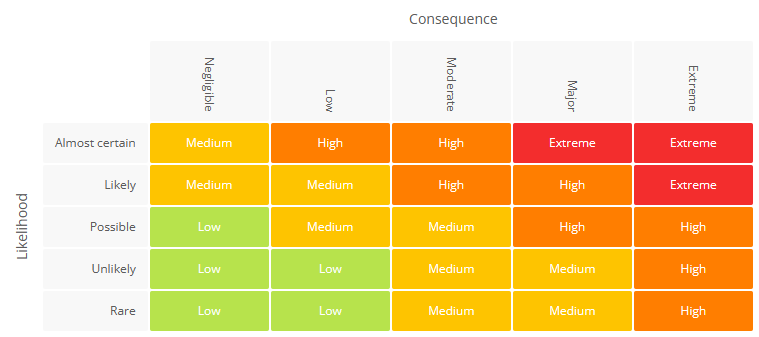 View example View example |
| Option 4 Aligns with the Australian Commission on Safety and Quality in Healthcare. | 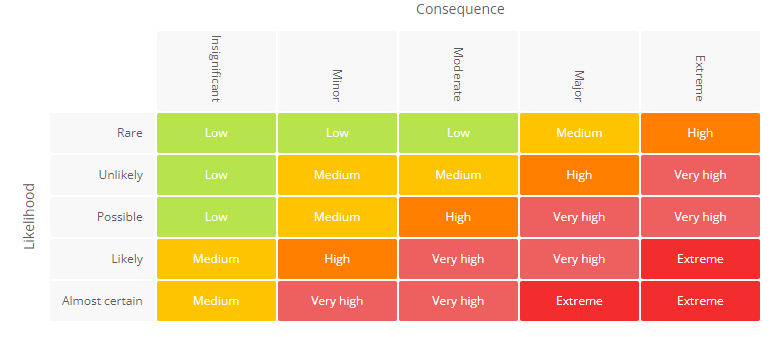 View example View example |
| Option 14 Aligns with Te Whatu Ora, Health New Zealand. | 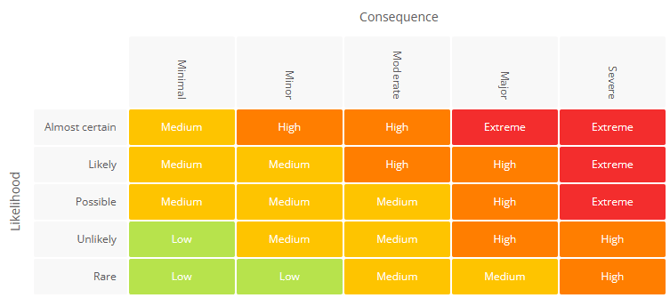 View example View example |
Paid library options are 5 to 13 and 15 to 26.
| Matrix option | Example |
|---|---|
| Option 5 | 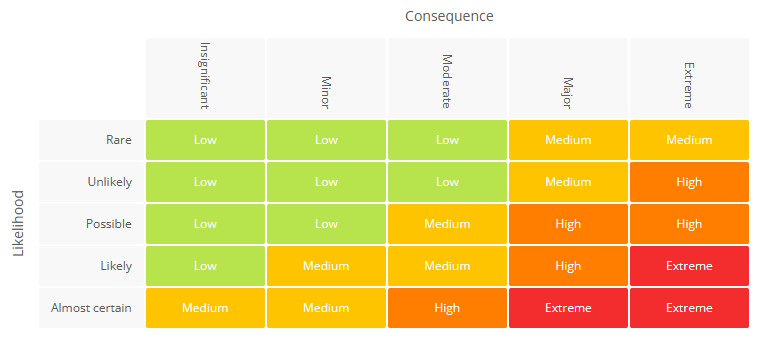 View example View example |
| Option 6 | 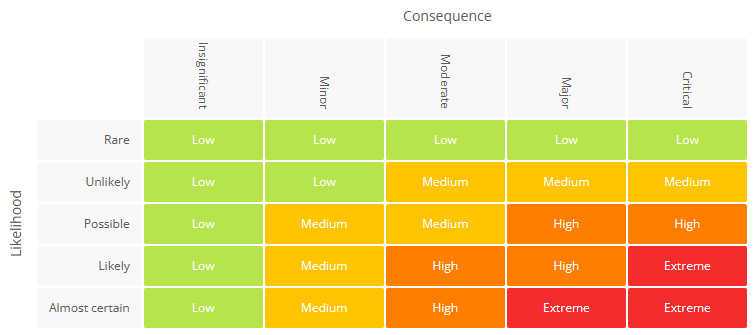 View example View example |
| Option 7 | 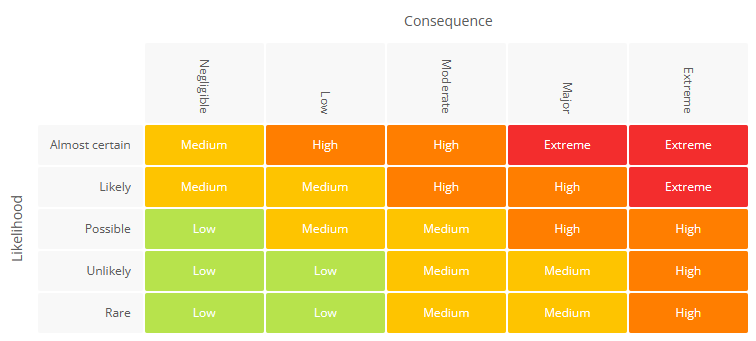 View example View example |
| Option 8 | 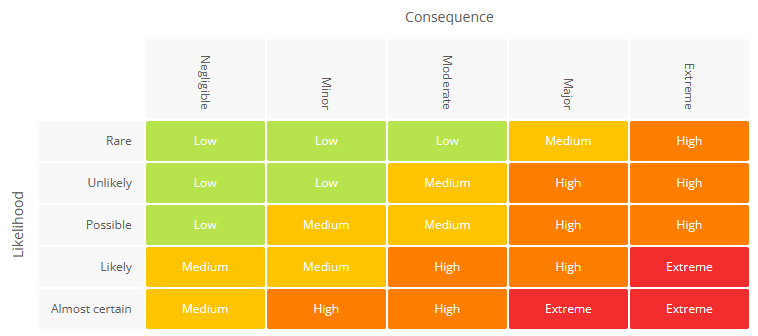 View example View example |
| Option 9 | 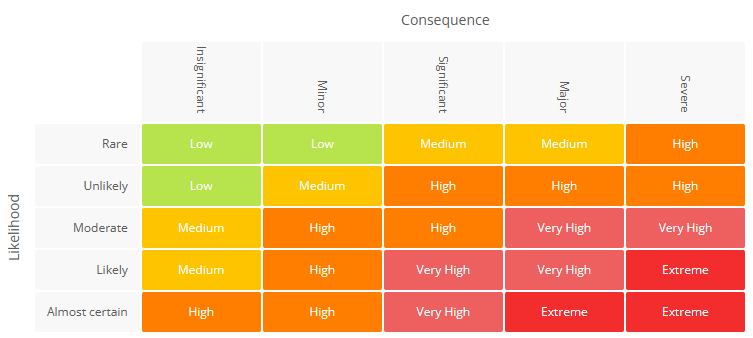 View example View example |
| Option 10 | 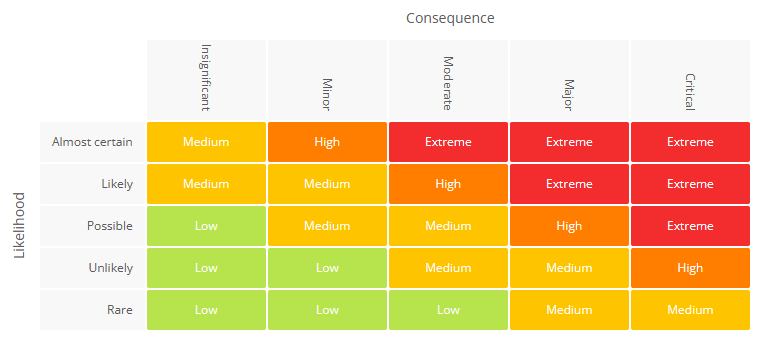 View example View example |
| Option 11 | 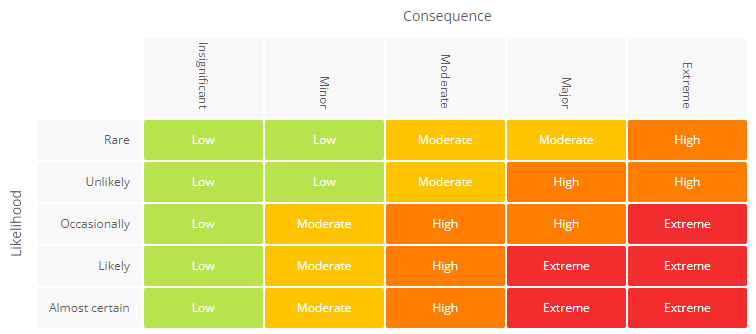 View example View example |
| Option 12 | 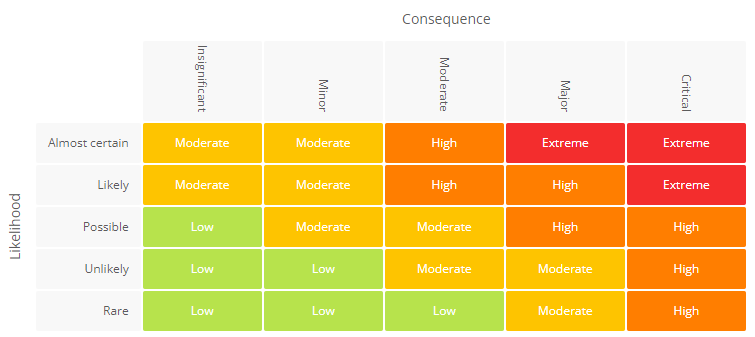 View example View example |
| Option 13 | 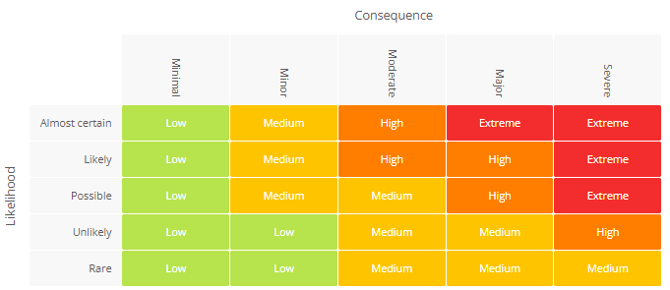 View example View example |
| Option 15 | 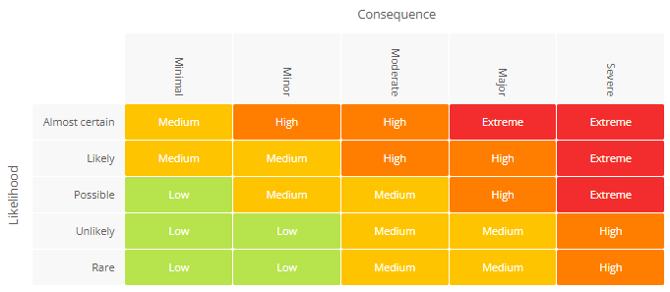 View example View example |
| Option 16 | 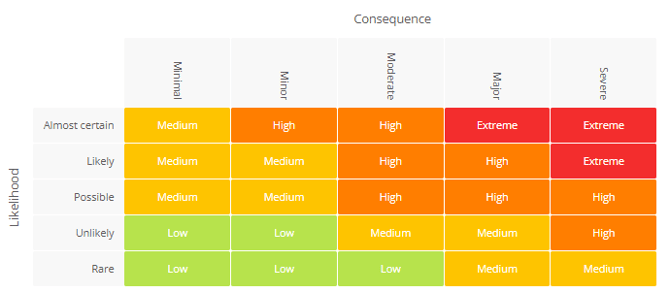 View example View example |
| Option 17 | 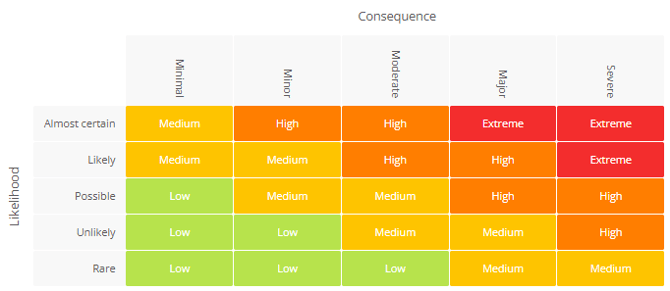 View example View example |
| Option 18 | 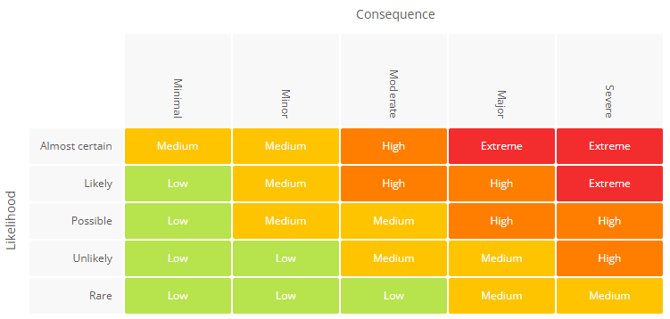 View example View example |
| Option 19 | 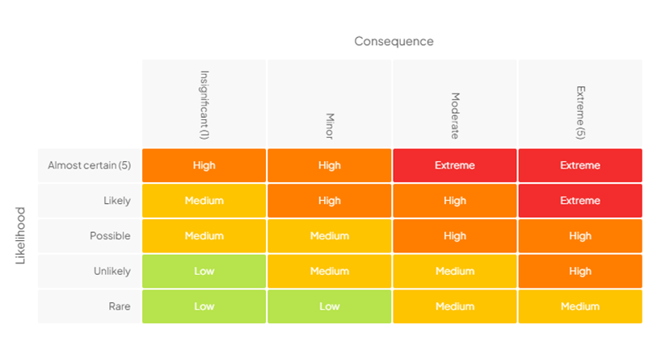 View example View example |
| Option 20 Numbering is fixed and cannot be changed. | 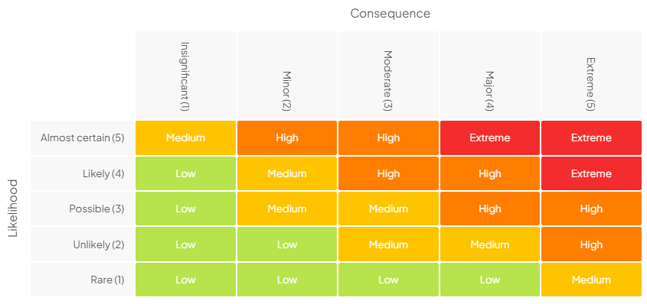 View example View example |
| Option 21 | 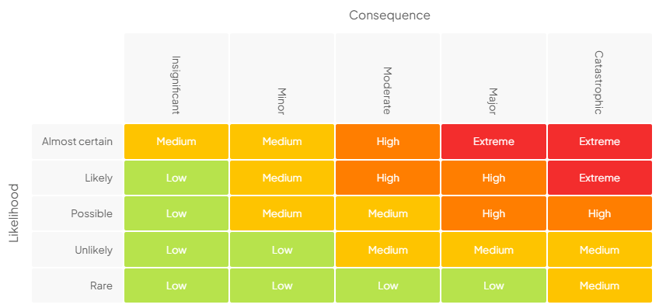 View example View example |
| Option 22 | 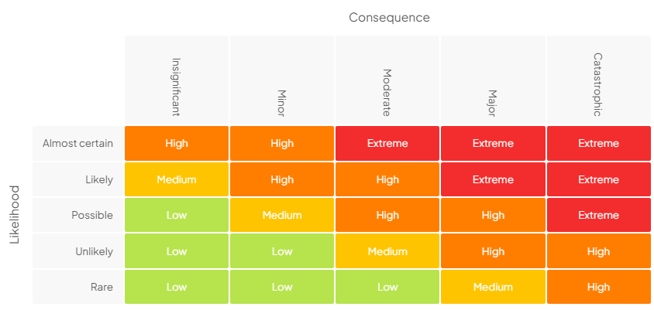 View example View example |
| Option 23 | 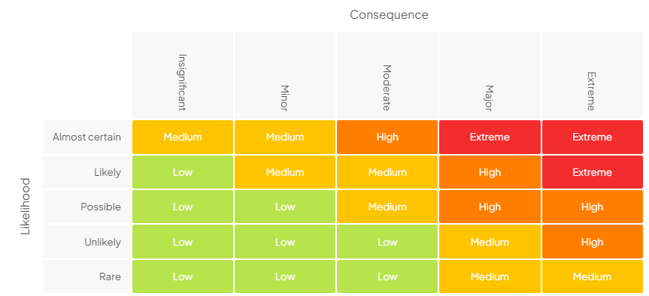 View example View example |
| Option 24 | 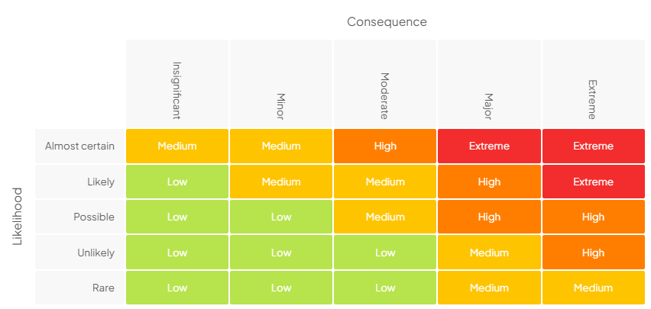 View example View example |
| Option 25 | 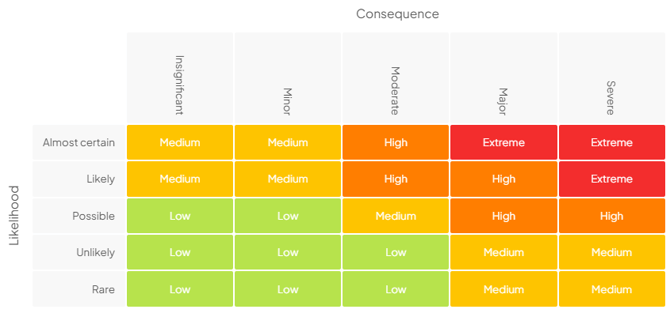 View example View example |
| Option 26 | 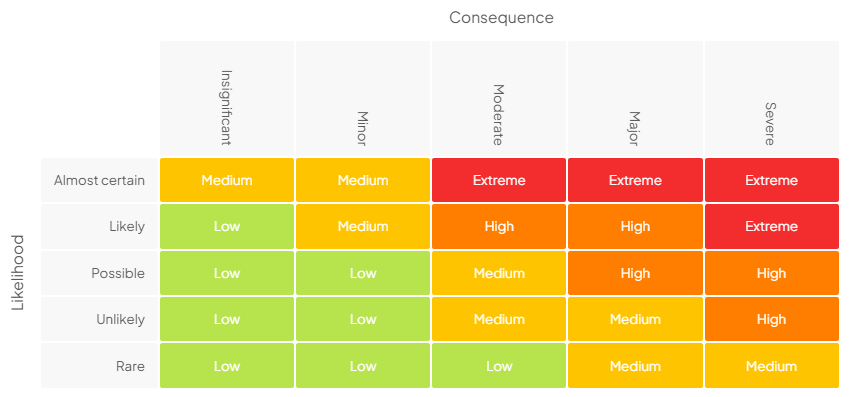 View example View example |
Ordering a matrix: If the free options do not suit your risk framework, contact Logiqc to discuss a paid library option or a custom matrix based on your own design. The published catalogue lists a once-off fee of $450 for paid library options and custom designs. Confirm the current fee with Logiqc before ordering.
Troubleshooting
"The matrix wording is not what we expected"
- Check Matrix cell label language for the risk value labels.
- Check Likelihood and Consequence label language for row and column wording.
- Check Risk assessment criteria for the text users see when interpreting a risk level.
What happens next
Risk ratings use the configured matrix
Users apply the matrix when setting uncontrolled, controlled, and target ratings.
Criteria support consistent assessment
The label language and criteria help users interpret each rating consistently.
Reporting is easier to compare
Consistent risk ratings make register views, dashboards, and exports easier to read.