
In this article:
Learn how to permanently delete an item from the Draft tab in a register.
A register's Draft tab shows draft items in that register that you have permission to access. Its count may differ from the personal drafts shown under Drafts in the top navigation bar because only draft reports are shown in personal drafts.
Important information
- Deleting a draft is permanent. Deleted drafts cannot be restored.
- Selecting Delete draft opens a confirmation dialog. The draft is deleted immediately once you confirm.
- Drafts are the only register items that can be deleted from Logiqc.
- All users can delete draft items. Users with a Report only licence can delete only their own drafts.
The Draft tab is used only for documents added through the Logiqc Document Import service. It remains visible while imported drafts are waiting to be published or deleted.
Q: Why is the count on a register's Draft tab different from the Drafts count at the top of Logiqc?
A: Only draft reports are shown in personal drafts under the top Drafts button. A register's Draft tab shows draft items in that register that you have permission to access, so the counts may differ.
Q: Can a deleted draft be restored?
A: No. Deleting a draft is permanent.
Before you start
Check the following:
- No special permission is required. Any user can delete a draft. Users with a Report only licence are limited to deleting drafts they created themselves; other licence types can delete any draft in the register.
About draft items
A register's Draft tab contains items that have not yet entered the register workflow. The tab may be listed under More tabs (the vertical ellipsis).
The Drafts button in the top navigation bar is a separate personal quick-access list, so its count may differ from the count shown in a register.
Step 1: Open the register's Draft tab
Open the register where the item is saved, then select Draft. If the tab is not visible, select More tabs (the vertical ellipsis).
Navigation path
Select Draft. If it is hidden, open More tabs first.
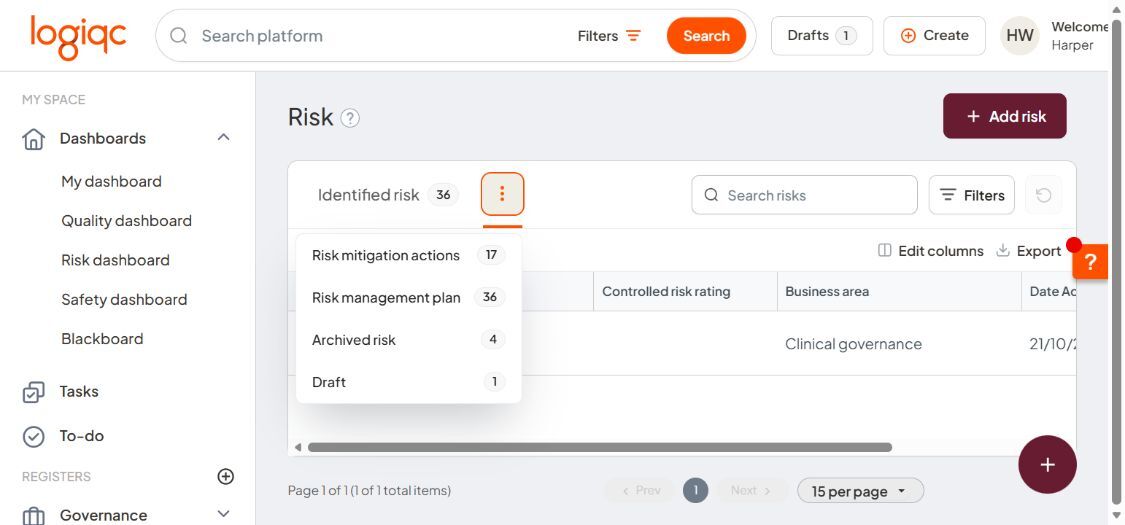
Select Draft under More tabs when it is hidden from the register's tab row.
Step 2: Open the draft item
Select the draft you want to review or delete. The item opens on the page where it was originally saved.
Step 3: Select Delete draft
At the bottom of the page, select Delete draft.
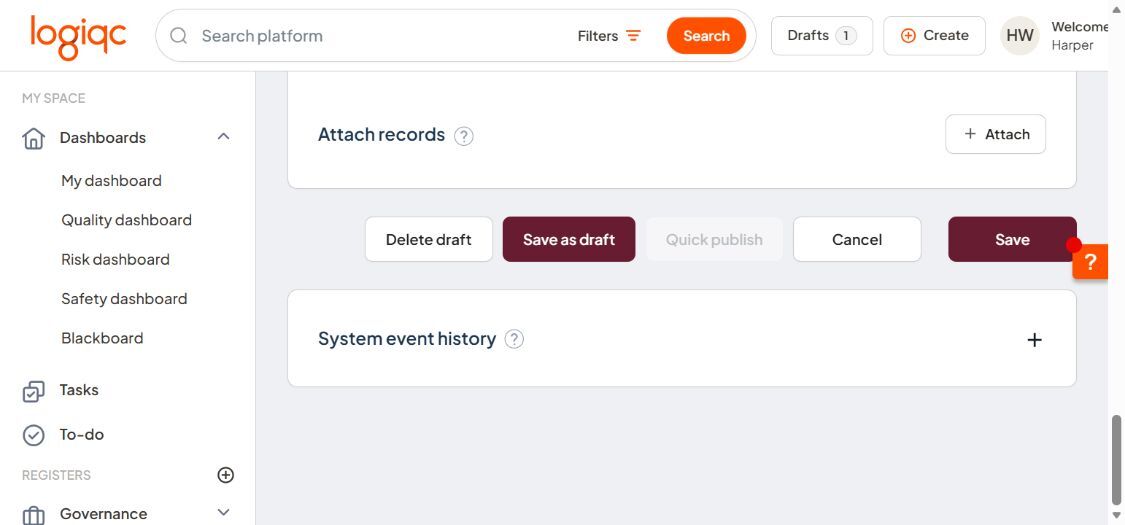
Select Delete draft at the bottom of the saved draft form.
Step 4: Confirm the deletion
Important: Check that you have selected the correct draft before continuing. Once you select Delete, the item cannot be restored.
A confirmation dialog opens, asking whether you're sure you want to delete the draft item. Select Delete to permanently remove it, or Keep to cancel.
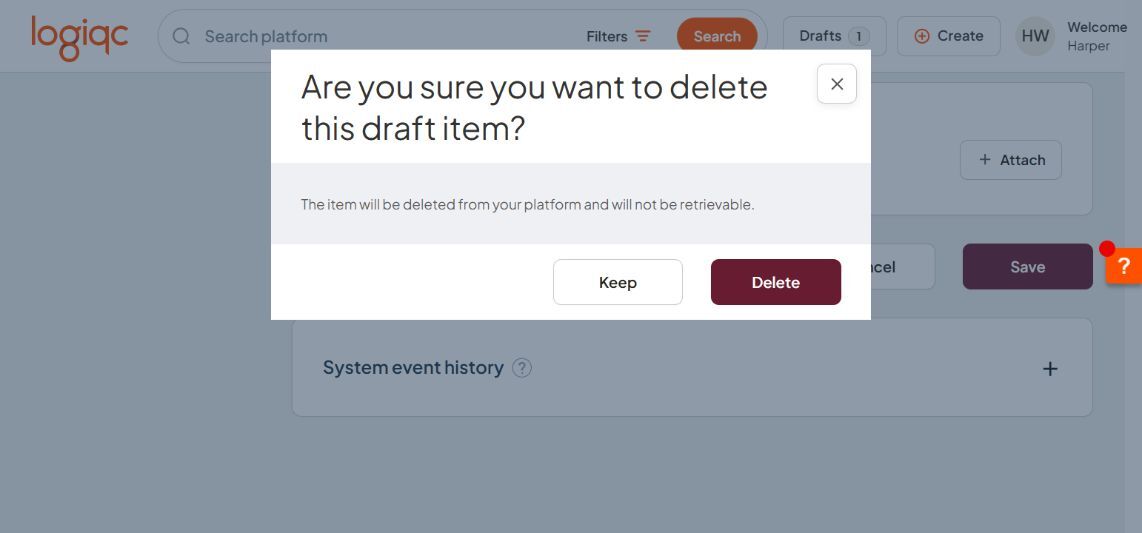
The dialog warns that the item won't be retrievable once deleted.
The draft is deleted immediately.
What happens next
It disappears from your Drafts list
The item no longer appears on that register's Draft tab.
Your Drafts count updates
The register's Draft tab count updates. The count under the top Drafts button also updates if the item was listed there.