
In this article:
Related items connects a register item to other items across Logiqc - for example, linking an improvement to a series of related incidents, linking related policy documents, or an improvement to the audit that raised it.
Most register items have a Related items tab showing a table of linked items and options to link existing items and create new ones.
The Related items tab
Open a register item and select the Related items tab to see everything linked to it. The tab lists each linked item's status, ID, register, type, name, and relationship to the current item.
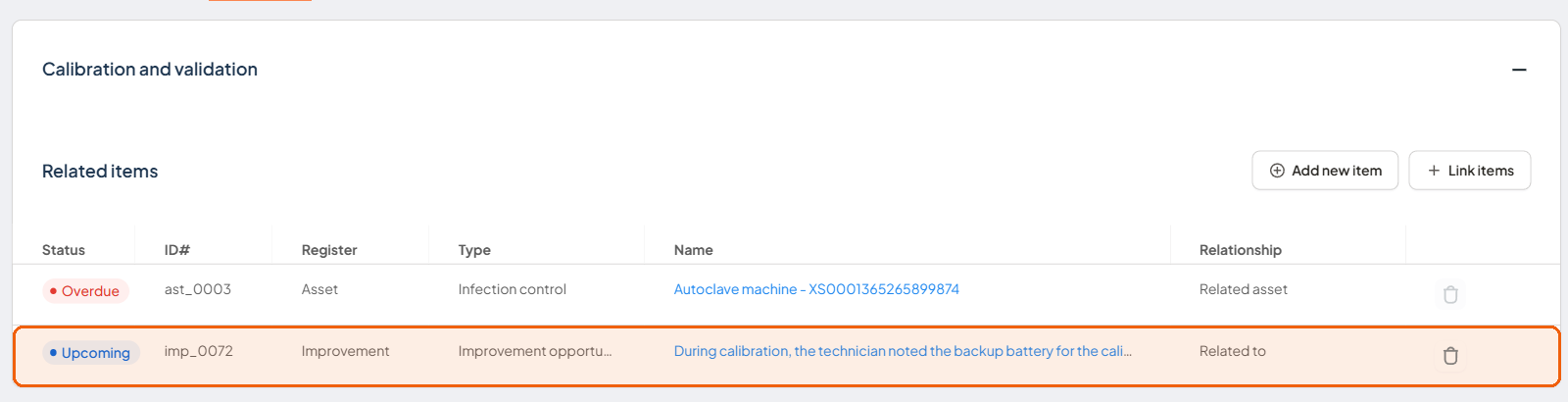
The Related items tab lists linked items with their status, register, type, name, and relationship.
Add new item and Link items
From the Related items tab, use one of two buttons to create a link:
- Add new item: opens the same register picker as the top-bar Create button. Choose a register to create a new item, and Logiqc links it back to the item you started from automatically.
- Link items: opens Create links with other register items. Choose a register, search for existing items, select one or more, and select Save. If you switch to a different register partway through, any items you have already selected stay selected.
Relationship types
The Relationship column describes how a linked item relates to the current one:
| Relationship | Description |
|---|---|
| Related to | A general link created directly from the Related items tab, using Add new item or Link items. |
| Risk control | The linked item is recorded as a control for a risk, added from the risk Risk controls panel. |
| Evidence | The linked item is recorded as evidence for an accreditation standard requirement. |
| Source documentation / Reference document | The linked item is set in a source or reference document field elsewhere on the item, such as a compliance task or contract. |
Managing and removing links
Links created directly from the Related items tab (Relationship: Related to) can be removed from the same tab. Links created from another field or panel, such as Risk controls, usually have a disabled bin icon in Related items and must be managed from where they were created instead. Evidence links are the exception, they can be removed from either the Related items tab or the accreditation standard own evidence list.
Get started
To connect a register item to another, open its Related items tab and select Add new item or Link items - the same tab also covers removing or changing a link later.
Read the article to find out more: